Web interface usage
This section describes the web interface elements for controlling and monitoring the streaming process.
1. Streaming status
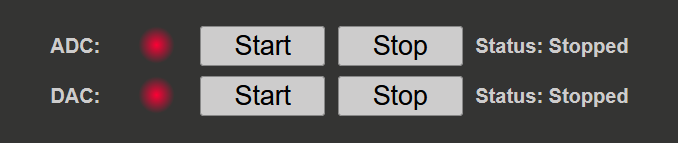
The streaming status section displays the current status of the ADC and DAC streaming process (GPIO will be added in the future). Each section has the following options:
Status indicators
Status circle: Indicates the current status of the streaming process
Green: Streaming is active
Red: Streaming is not active
Status message: Displays the current status of the streaming process as well as any error messages that may occur
Error messages
If the status message is red, it indicates that an error has occurred. The error message will provide information about the cause of the error and how to resolve it.
Common error messages
“Not enough memory”
Cause: Insufficient memory allocated for the streaming mode
Solutions:
Check the reserved memory settings in Memory Configuration
Increase the reserved memory size
For DAC streaming, ensure a file is selected for data generation
Reduce memory allocation for other modes
“Buffer overwrite”
Cause: Data rate exceeds system capabilities
Solutions:
Reduce sampling frequency
Use fewer channels
Increase block size (for high-speed streaming)
“Configuration error”
Cause: Invalid configuration parameters
Solutions:
Review ADC Configuration or DAC Configuration
Ensure all required settings are properly configured
Check configuration file syntax (if manually edited)
2. Files on the SD card
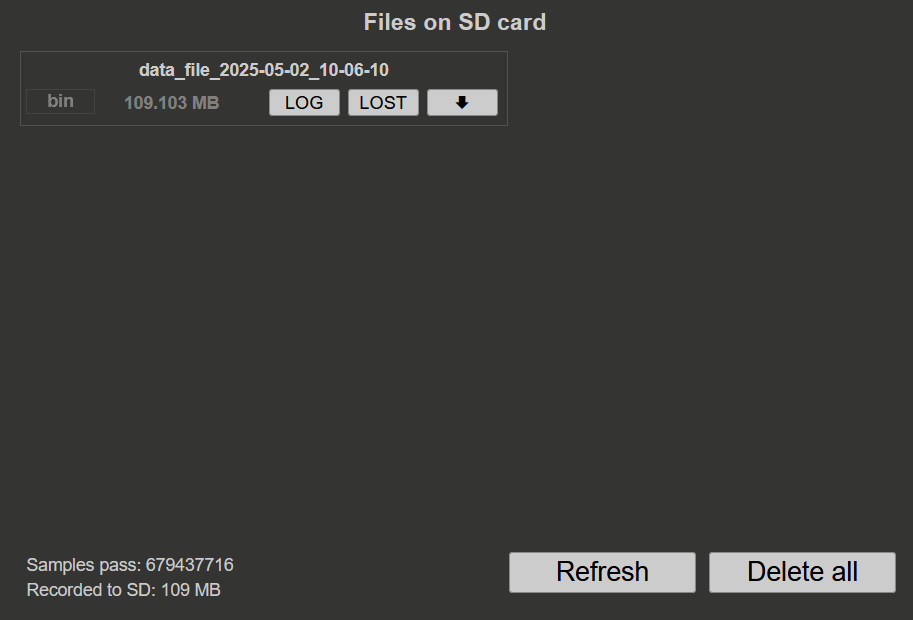
This section displays all the files saved on the SD card during local streaming operations.
File information
Each file entry displays:
File name: Includes date and time (data_file_<acquired_date>_<acquired_time>)
File type: Format of the saved file (WAV, TDMS, BIN)
File size: Size of the file in bytes or appropriate units
When streaming ADC data in local mode, both the amount of data captured on the FPGA and the amount saved to the SD card are displayed.
File operations
Each file has three buttons:
File management
3. PC Clients

The PC clients section is located in the bottom left corner of the application. It contains downloadable clients for streaming data to a remote computer, Red Pitaya or another external device (like Raspberry Pi).
Available clients
Desktop client (Windows, Linux)
Icon: Green monitor icon
Platforms: Windows (WIN) and Linux (LIN)
Type: Graphical user interface (GUI) application
Capabilities:
Stream data from one or more Red Pitaya boards
Works on the same local network
Visual monitoring and control
Multi-board synchronization
Recommended for: Users who prefer a GUI application for streaming data
Documentation: See Streaming to a remote computer via Desktop Application
Command line client (Windows, Linux)
Icon: Green terminal icon
Platforms: Windows (WIN) and Linux (LIN)
Type: Command line application
Capabilities:
Stream data from one or more Red Pitaya boards
Scriptable and automatable
Advanced configuration options
Remote DAC streaming support
Multi-board synchronization
Recommended for: Users who prefer command line tools or need automation
Documentation: See Streaming to a remote computer via Command Line or Terminal
Red Pitaya command line client
Icon: Console icon
Platform: Red Pitaya Linux
Type: Console client
Capabilities:
Stream data to and from the SD card
Local control without network
Direct access to Red Pitaya storage
Recommended for: Local operations via SSH
Documentation: See Red Pitaya command line client
Raspberry Pi command line client
Icon: Console icon
Platform: Raspberry Pi Linux
Type: Console client
Capabilities:
Stream data to and from the Raspberry Pi
Local network control
Recommended for: Limited speed local network operations
Documentation: See Red Pitaya command line client
Documentation
Icon: Blue question mark
Function: Opens this documentation page
Usage: Quick access to help and reference materials
4. Next steps
Download and install the Desktop Client for graphical control
Try the Command Line Client for advanced features
Learn about Local Streaming to save data directly to the SD card
Explore Examples for practical use cases