2.6. SD card advanced guide
This section contains advanced SD card information, including older OS versions, nightly builds, command-line installation methods, partition structure, and manual upgrade procedures.
Note
For basic installation instructions, see the Prepare SD card guide.
2.6.1. OS Versions
The OS versions are listed from newest to oldest. Each listed OS version consists of an image download link (to download the OS image) and a changelog link (listing the major changes in the OS).
Latest OS
Note
One OS to rule them all. The latest OS versions (2.00 and higher) work on all Red Pitaya board models.
Red Pitaya OS 3.0:
Latest Stable (3.00-57)- CHANGELOG (MD5 (extracted): 930574230e45249e1cd23d735e93ca3a).
Red Pitaya OS 2.0:
Older versions can be found here
Note
If you have problems running the 2.00 or higher versions of the OS and you updated from the 1.04 or older OS image, please check this GitHub solution. For all other problems please contact the support team.
Note
When updating the OS to 2.00 or higher version from 1.04 or older (or downgrading from 2.00 or newer to 1.04 or older), a factory reset of calibration parameters must be performed. Please open the Red Pitaya’s web interface and head to System => Calibration => Manual DC calibration. Click on Reset, select Factory, and confirm the reset. For more details on calibration, please see the Calibration application.
1.04 OS
The 1.04 OS versions are board model specific. Please download only versions compatible with your board type.
Here is a video on how to identify the Red Pitaya board model and install 1.04 or older OS to the SD card.
STEMlab 125-14 & STEMlab 125-10:
1.04-28- CHANGELOG (MD5 (zipped): 92e14e68d27e63568fb87954239e9fb0).1.04-18- CHANGELOG (MD5 (zipped): f6cde9b3264a12372873d039535e58d5).
STEMlab 125-14 (secondary/slave board) (not recommended - use 2.00 version instead):
STEMlab 125-14 Z7020:
1.04-14- CHANGELOG (MD5 (zipped): c740aab5d7b374924f19171e1edd3161).1.04-10- CHANGELOG (MD5 (zipped): 3770f34e954674b0423db33ed8a3471d).
STEMlab 125-14 4-Input (not recommended - use 2.00 version instead):
SDRlab 122-16:
1.04-15- CHANGELOG (MD5 (zipped): ba9f8be2f19630b42ee7b56bdd1d4392).1.04-11- CHANGELOG (MD5 (zipped): 634cf27555d4ae8900c92833afc1ddb9).
SIGNALlab 250-12:
1.04-30- CHANGELOG (MD5 (zipped): 2acb0579dbf67a40828a9b60a59be9e8).1.04-27- CHANGELOG (MD5 (zipped): 40601a42fb06cf23f43aefe15d042a01).
Older OS versions
All older OS versions that are in our database are available in our archive:
Red Pitaya archive - some images may require separate ecosystem and Linux OS installation. Check the nightly build installation instructions.
Note
Impossible. Perhaps the archives are incomplete.
OS images not in our archive have been lost to the sands of time. If you are looking for a specific OS or ecosystem that is missing from the archives, we suggest you ask the community on the Red Pitaya Forum. There is a chance someone has it lying around on the disk.
For manual ecosystem upgrade please refer to Manual ecosystem upgrade.
Nightly Builds
The nightly builds are snapshots of the development activity for upcoming Red Pitaya OS releases and include the newest features and bug fixes scheduled for the official releases. These builds are made available to make it easier for users to test their setup for potential issues with an upcoming release or to test new features and provide feedback on improving them before they are released as a Beta OS or Stable version. We have decided to release the nightly builds to ensure that our codebase stays healthy and to shorten the time to fix some of the reported issues or implement some new features reported as suggestions for improvement. As these builds are snapshots of the latest code, odds are you will encounter more issues compared to stable releases. Please report any issues to support@redpitaya.com so that our developers can review them and make any needed fixes.
Nightly Builds ecosystem:
The instructions for installing the Nightly Builds are available in the Nightly build installation guide below.
Note
These OS versions are Alpha releases and may be unstable and may cause misconfigurations or measurement data loss. We recommend that you use them solely for testing purposes, or you have reported a bug or requested a feature and our technical staff has instructed you to proceed.
2.6.2. Command-line installation
For users who prefer command-line tools, detailed instructions are provided for Linux and macOS.
Linux
Note
Please note that the use of the dd tool can overwrite any partition of your machine.
If you specify the wrong device in the instructions below, you could delete your primary Linux partition.
Please be careful.
Insert the SD card into your PC or SD card reader.
Open the terminal and check the available disks with
df -h. Our SD card is 16 GB. It is named/dev/sdxand divided into two partitions,/dev/sdx1and/dev/sdx2. The drive mounted at/is your main drive. Be careful not to use it.$ df -h Filesystem Size Used Avail Use% Mounted on /dev/sdx1 118M 27M 92M 23% /media/somebody/CAD5-1E3D /dev/sdx2 15.9G 1013M 15.8G 33% /media/somebody/7b2d3ba8-95ed-4bf4-bd67-eb52fe65df55
Unmount all SD card partitions with
umount /dev/sdxN(make sure you replace N with the right numbers).$ sudo umount /dev/sdx1 /dev/sdx2
Write the image onto the SD card with the following command. Replace the
red_pitaya_image_file.imgwith the name of the unzipped Red Pitaya SD Card Image and replace/dev/device_namewith the path to the SD card.$ sudo dd bs=1M if=red_pitaya_image_file.img of=/dev/device_name
Wait until the process has finished.
macOS
Insert the SD card into your PC or SD card reader.
Open Disk Utility: Click
cmd + space, type Disk Utility into the search box and press enter. From the menu, select your SD card and click on the Erase button (be careful not to delete your disk!).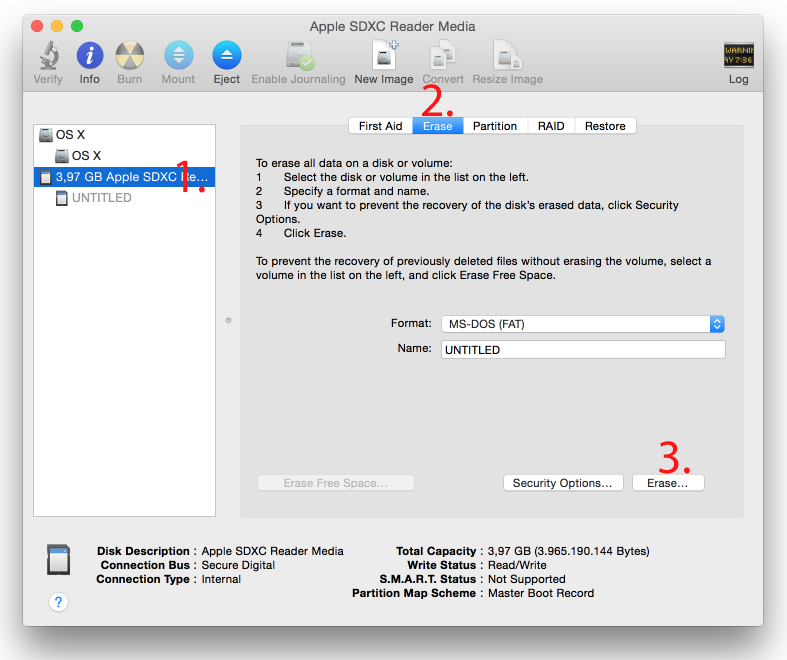
Open the Terminal: Click
cmd + space, type Terminal into the search box and press enter. Typecd Desktopand press enter.Unmount the partition so that you will be able to overwrite the disk. Type
diskutil listinto the Terminal and press enter. This will show you the list of all memory devices.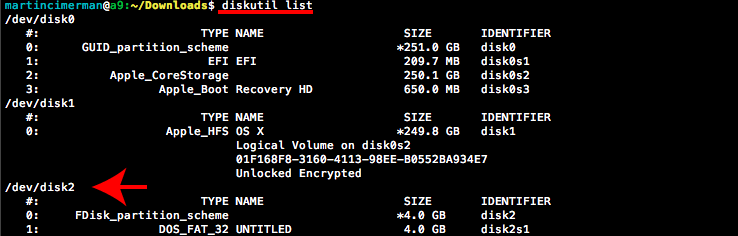
Unmount with:
diskutil UnmountDisk /dev/diskn(insert the numbernof your disk correctly!)
Write the image onto the SD card: Type
sudo dd bs=1m if=path_of_your_image.img of=/dev/rdiskn. Remember to replacenwith the number that you noted before. Notice that there is a letterrin front of the disk name, use that as well!
Wait for the process to complete: Type in your password and wait a few minutes for the image to be written.
Eject the SD card: When the image is written, type:
diskutil eject /dev/disknand press enter.
2.6.3. Red Pitaya OS partitions
The Red Pitaya OS image on the SD card contains two partitions. As of OS 2.05-37 and higher, the partitions are as follows:
1 GB FAT contains the ecosystem:
Boot files: FSBL, FPGA images, U-Boot, Linux kernel;
Red Pitaya API libraries and header files;
Red Pitaya web applications, scripts, tools;
Customized Nginx web server.
~8 GB Ext4 contains the Linux OS:
Ubuntu/Debian OS,
various libraries,
network setup customization,
systemd services customization.
Most of Red Pitaya’s source code translates into the ecosystem. Therefore, it is updated more often to accomodate new features and bug fixes. The newer the ecosystem, the larger the FAT partitions (the earlies Red Pitaya OS images have around 128 MB FAT partitions). The Linux OS is updated less frequently.
Note
Generally, the newer the ecosystem, the larger the FAT partition size. You can find all available Red Pitaya OS images and Ecosystem zip files on our Red Pitaya archive.
Note
A list of new features, bug fixes, and known bugs for each Red Pitaya release can be found in our CHANGELOG.
Delete partitions on the SD card
Deleting the old partitions on the SD card is sometimes necessary when preparing the SD card for a fresh installation of the Red Pitaya OS.
Note
If BalenaEtcher fails to write the image to the SD card (writer process ended unexpectedly error), it is likely that the SD card has some existing partitions that need to be deleted first.
Note
Deleting partitions will erase all data on the SD card. Make sure to back up any important data before proceeding.
Please be careful when selecting the disk to avoid deleting partitions on the wrong disk.
Windows
Insert the SD card into the PC or SD card reader.
Open the Disk Management utility: Open the Computer Management > Disk Management utility. Admin privilieges are required.
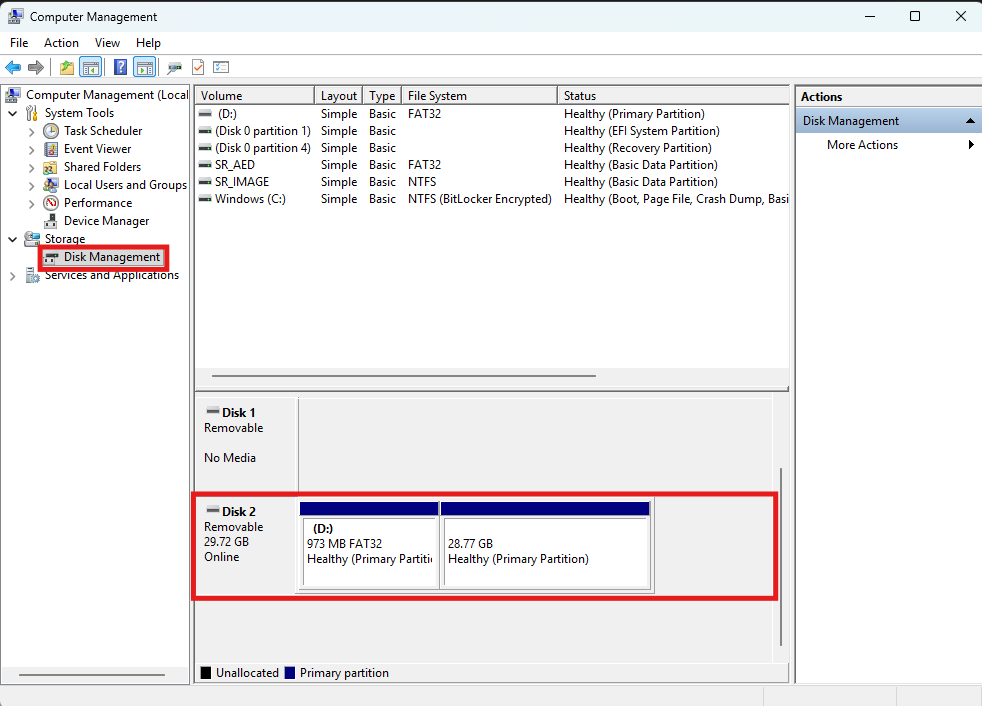
Delete partitions: Right-click on each partition of the SD card and select Delete Volume.
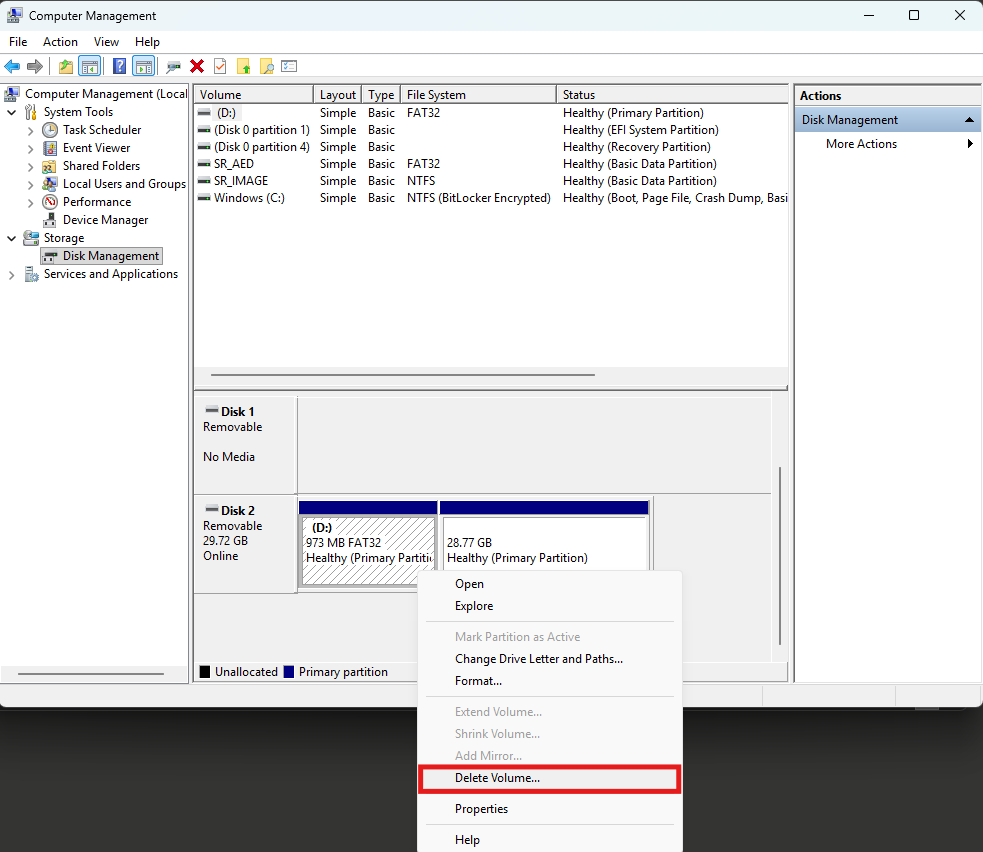
Check the SD card: After deleting all partitions, the SD card should show as Unallocated.
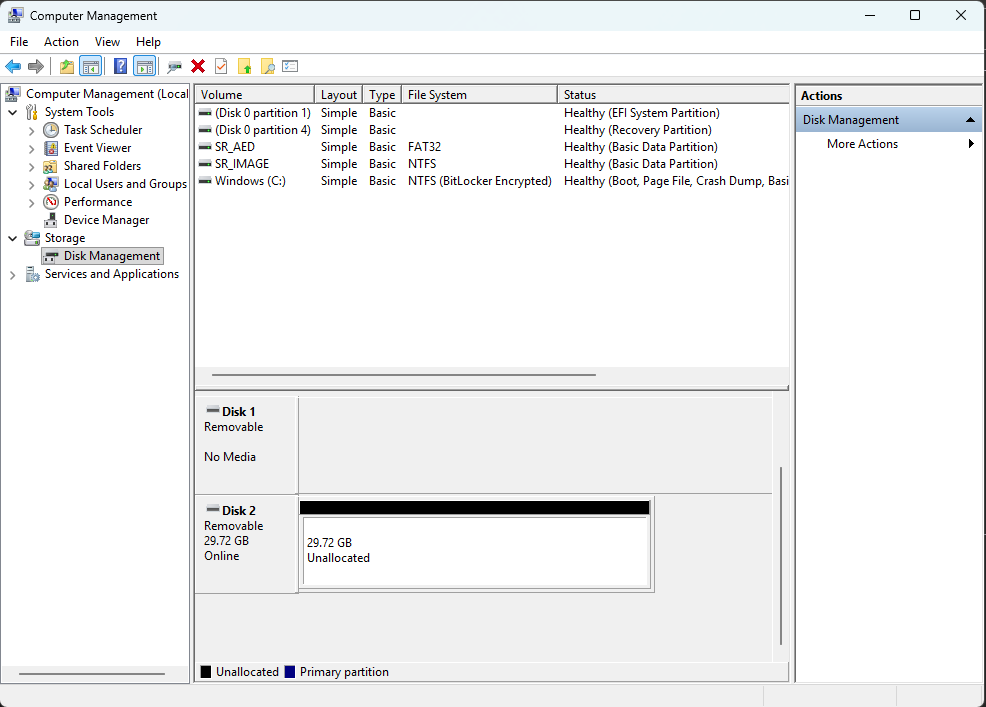
Close the Disk Management utility and proceed with the Red Pitaya OS installation using BalenaEtcher as described in the Prepare SD card guide.
Linux
Insert the SD card: Reinsert the SD card into the PC or SD card reader.
List the available disks: Use
lsblkorfdisk -lto list the available disks.Select the SD card device: Choose the SD card device (e.g.,
/dev/sdx) and delete all existing partitions withsudo fdisk /dev/sdx:Type
dand press enter to delete a partition.If there are multiple partitions, repeat the previous step until all partitions are deleted.
Type
wand press enter to write the changes to the disk and exitfdisk.
MACOS
Insert the SD card: Reinsert the SD card into the PC or SD card reader.
Delete partitions: Follow the instructions on the official Apple support page to delete all existing partitions on the SD card using the Disk Utility application.
2.6.4. Manual ecosystem upgrade
Instead of writing the whole SD card image, it is possible to upgrade only the ecosystem. A manual upgrade allows you to fix a corrupted SD card image (if only the FAT partition is corrupted) or to install older, newer, or custom ecosystem zip files compatible with the current Linux version.
Download a zip file from our Red Pitaya archive.
Insert the SD card into the card reader.
Note
Do not format the SD card as this will also delete the Linux OS partition.
Delete all files from the FAT partition. Use
Shift + Deleteto avoid placing files into the trash bin on the same partition.Extract the ecosystem zip file contents onto the now empty partition.
If you wish to keep wireless settings, skip deleting the next files:
wpa_supplicant.confhostapd.conf
2.6.5. Nightly build installation guide
Note
Nightly builds are released several times a week and contain the latest features and bug fixes. The nightly builds are alpha versions of the OS and are not as thoroughly tested as the official releases, so they may contain bugs.
As mentioned in the Red Pitaya OS partitions chapter, each Red Pitaya OS consists of two separate files:
Linux OS - red_pitaya_OS-beta_<Linux OS version>.img.zip - which contains Ubuntu OS, Red Pitaya libraries, etc.
Ecosystem - ecosystem-<Linux OS version>-<Nightly Build ecosystem number>-<ID>.zip - Red Pitaya Web APIs.
The official Red Pitaya OS releases have both the Linux OS and the ecosystem combined into one image file. For new feature development used for Nightly build (alpha OS) versions it is easier to have the two separated, so the nightly builds are released as two separate files.
Red Pitaya OS |
OS release date |
Nightly Build (alpha) versions |
Linux version |
|---|---|---|---|
IN DEV |
NB 811 and later |
3.00 |
|
3.00-57 |
7.7.2026 |
up to NB 810 |
3.00 |
2.07-48 |
1.12.2025 |
up to NB 655 |
2.07 |
2.07-43 |
4.9.2025 |
up to NB 622 |
2.07 |
2.05-37 |
7.8.2024 |
up to NB 345 |
2.05 |
2.04-35 |
15.3.2024 |
up to NB 258 |
2.04 |
2.00-30 |
11.1.2024 |
up to NB 215 |
2.03 |
2.00-23 |
5.10.2023 |
up to NB 162 |
2.01 |
2.00-22 |
4.10.2023 |
up to NB 160 |
2.01 |
2.00-18 |
26.7.2023 |
up to NB 141 |
2.00 |
Download the Nightly Build Ecosystem: Download the .zip containing the Nightly Build Ecosystem (usually the highest number available).
Nightly build (alpha) ecosystems are named ecosystem-<Linux OS version>-<Nightly build ecosystem number>-<ID>.zip.
Go to the RedPitaya downloads page: Download the latest Linux OS.
Linux OS versions are named red_pitaya_OS-beta_<Linux OS version>.img.zip.
Note
Make sure the Linux OS version is the same as the one listed in the name of selected Nightly build (alpha ecosystem).
Note
Please note that Official Red Pitaya OS != Red Pitaya Linux OS. The Linux contains just the Linux, while the official release contains both the ecosystem and the Linux. We are looking for just the Linux here.
Write the Linux OS to the SD card using BalenaEtcher. As BalenaEtcher will automatically close the connection between the SD and the computer at the end of the installation process, reinsert the SD card into the computer.
Extract the alpha ecosystem from the .zip directly to the SD card (if possible without first extracting it to a folder on the computer).
Insert the SD card into the Red Pitaya and power it on.
Please read this section carefully
When unpacking the alpha ecosystem, some files may be overwritten because the FAT file system is not case-sensitive.
Files such as CONNMARK.h and connmark.h will appear to the file system to be the same file, so you will be prompted to choose which file to keep.
Note
For normal system operation any file can be chosen, since they do not affect the system operation.
For development purposes, you should already be using a Linux Ubuntu native OS, so this warning will not popup. The files are crucial for development and both versions of each file must be present on the development system.
This will also happen if you first extract to a folder, but you may not be informed of the change (it happens automatically).
This is a problem with the FAT file system, which is not case-sensitive, so files like
connmark.handCONNMARK.hare interpreted as the same file.
Updating nightly build ecosystem
To update just the nightly build ecosystem, you can use the Ecosystem update utility or perform the update manually by following the instructions in the Manual ecosystem upgrade section above.
2.6.6. Installing older OS on new boards
With the introduction of the 2.00 OS, a change was made to the calibration parameters storage format in the EEPROM, which makes it incompatible with older OS versions (1.04 and older). This causes issues when downgrading from 2.00 OS to 1.04 or older OS versions, as the older OS versions cannot read the new calibration parameters format stored in the EEPROM of newly produced boards. Unfortunately, the process is not as simple as installing the old OS to the SD card and running it, due to the mentioned change of EEPROM calibration format.
Note
The procedure described below is only suitable for downgrading to OS version 0.98 to 1.04.
Note
It is possible to install 1.04 or older OS to the following Gen 2 boards:
The other Gen 2 and TI boards require OS 2.07-43 or newer for proper operation.
Though we do not recommend it, some users may want to downgrade to an older OS version for various reasons. Here is a step-by-step guide on how to do it.
Manually install the latest OS version onto the newly acquired board. See the quick installation instructions.
Establish an SSH connection with the board to get access to the Red Pitaya’s Linux terminal. See the SSH connection instructions.
ssh root@<red_pitaya_ip_address>Convert the calibration to old format using the calib command line utility:
calib -oThis will convert the calibration data in the user space of the EEPROM to the old format.
Note
The conversion will NOT overwrite the factory calibration section in the EEPROM. Therefore, resetting the calibration to “factory defaults” via the calib utility or Calibration application will not work.
Install the older OS to the SD card and boot the board.
Adjust the frequency calibration (Gen 2 boards only).
2.6.7. Resize file system
Note
(OS 2.07-43 and higher) During the initial boot after flashing the OS to the SD card, the memory card partitions are automatically resized to use the full capacity of the card. To complete the process, the board reboots a second time. This increases the initial boot time somewhat. No manual action is required.
For older OS versions, the file system partitions are limited to the size defined in the image (typically 8 GB) and must be resized manually. To increase the available free space, run the following script:
root@rp-f03dee:~# /opt/redpitaya/sbin/resize.sh
When the script is finished, the system will ask you to reboot your Red Pitaya. If everything is done correctly, the system will start with an increased disk size. This can be checked with the following command:
root@rp-f03dee:~# df -h
Note
If the file system size has not changed, try running the command manually:
root@rp-f03dee:~# sudo resize2fs /dev/mmcblk0p2