3.6.16. Other useful information related to command-line tools
Saving data buffers
It is recommended that you use an NFS share to store any temporary data (e.g. the signals measured using the acquire utility). Use a standard mount command to mount your NFS share (example):
redpitaya> mount -o nolock <ip_address>:/<path> /mnt
The /opt file system on Red Pitaya, representing the SD card, is mounted read-only. To store the data locally on Red Pitaya, redirect the capture to a file in the /tmp directory. The /tmp directory is in RAM and therefore volatile (cleared on reboot).
redpitaya> acquire 1024 8 > /tmp/my_local_file
Alternatively, save the data directly to the NFS mount point:
redpitaya> acquire 1024 8 > /mnt/my_remote_file
Copying data - Linux users
If an NFS share is not available, you can use Secure Copy command:
redpitaya> scp my_local_file <user>@<destination_ip>:/<path_to_directory>/
Alternatively, Linux users can use graphical SCP/SFTP clients such as Nautilus (Explorer window). To access the address bar, type [CTRL + L] and enter the following URL sftp://root@<ip_address>

Figure 3.15 Nautilus URL/address bar.
Enter the Red Pitaya password (next figure). The default Red Pitaya password for the root account is root. To change the root password, see the buildroot configuration - a mechanism for building the Red Pitaya root filesystem, including the /etc/passwd file which contains the root password.
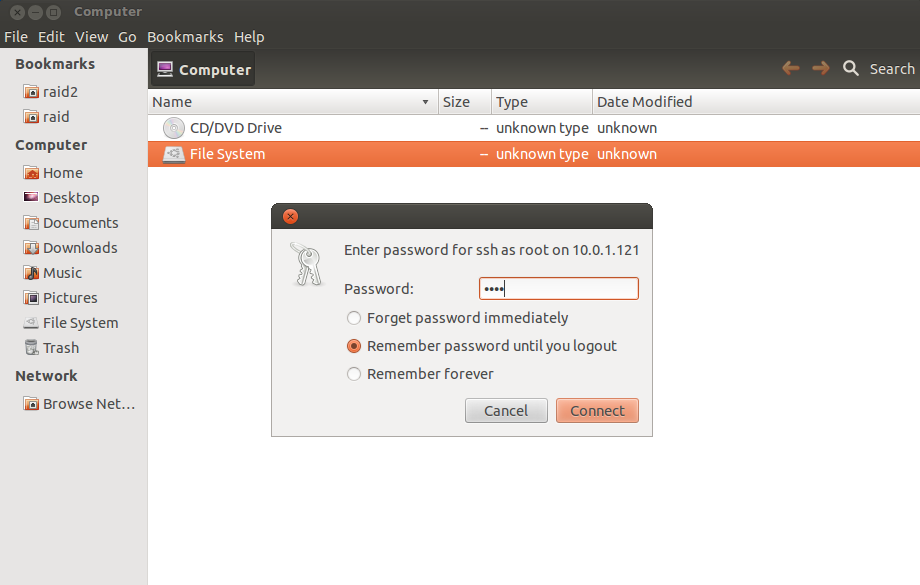
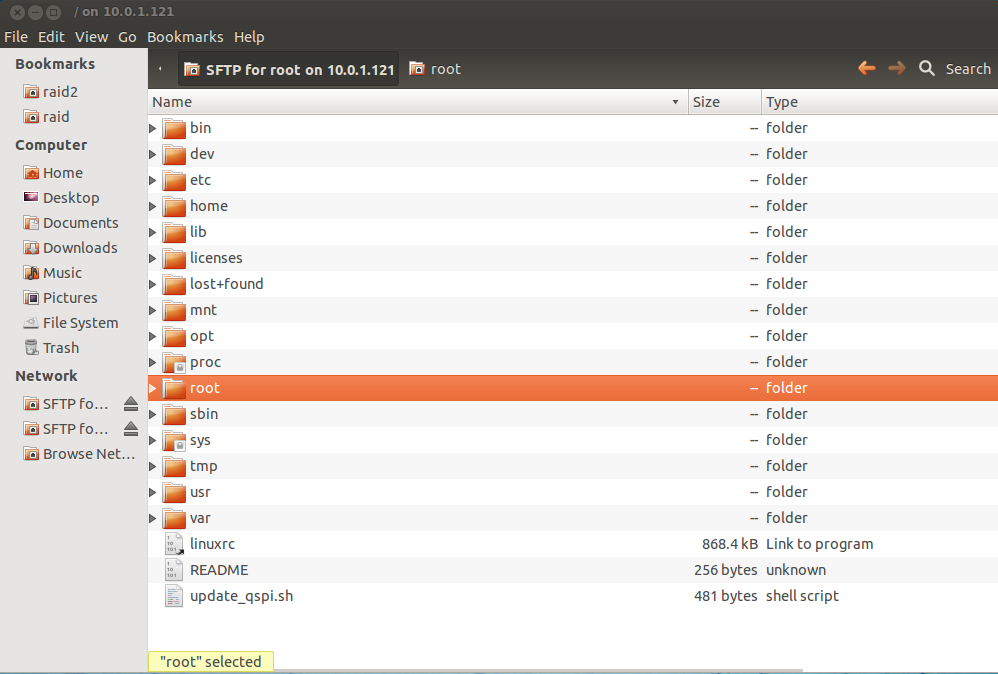
After logging in, the main screen will display the directory contents of Red Pitaya’s root file system. To manipulate files on Red Pitaya, navigate and select your stored data, then use the simple copy-paste and drag-and-drop principles (see Figure 2).
Copying data - Windows users
Windows users should use an SCP client such as WinSCP. Download and install it, following its installation instructions. To log in to Red Pitaya, see the example screen in the next figure.
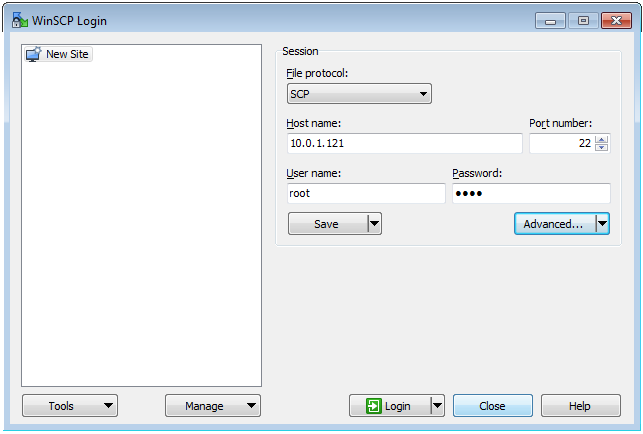
Figure 3.16 WinSCP login screen.
After logging in, the main screen will show the contents of the Red Pitaya root filesystem. To manipulate files on Red Pitaya, navigate and select your stored data, then use the simple copy-paste and drag-and-drop principles (see next figure).
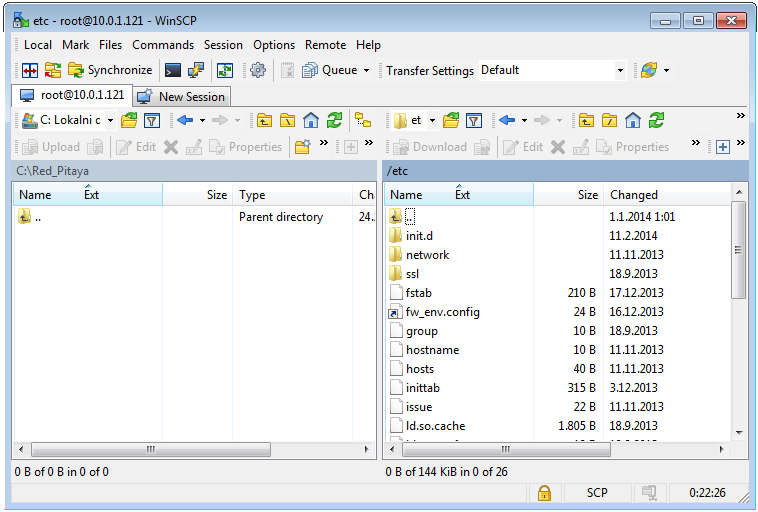
Figure 3.17 Directory content on Red Pitaya.
Select the destination (local) directory to store the data file in (see next figure).
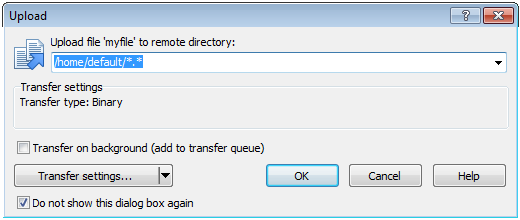
Figure 3.18 Select file copy destination.