3.2.8. Data stream control
Data stream control (also called the Streaming application) unlocks the capability to stream data between Red Pitaya and the computer. This functionality can be extended by synchronising multiple boards together to create a multi-channel system (X-channel system and X-channel 2.0 (Click Shield) synchronisation).
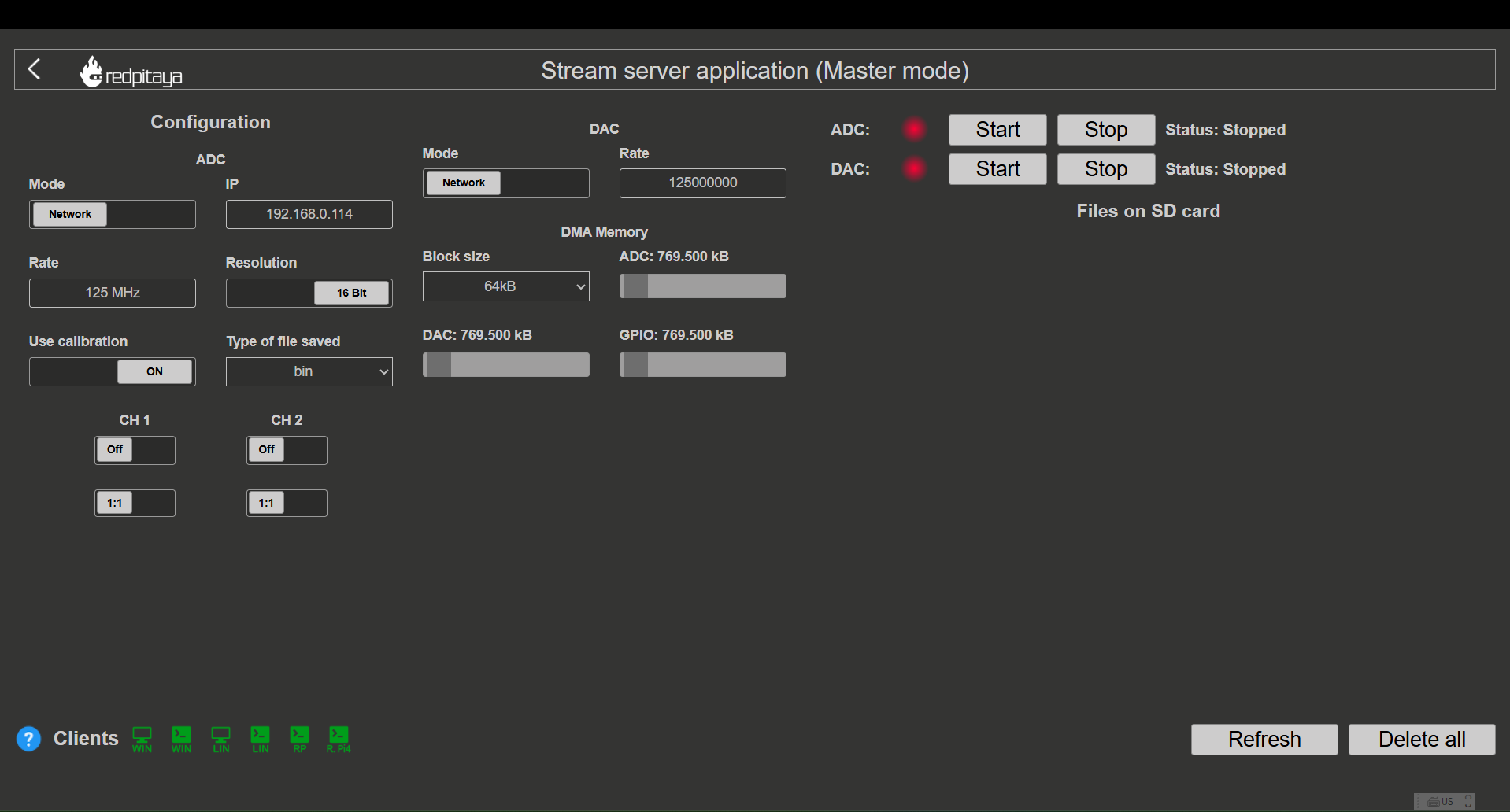
Overview
The Streaming application is designed to provide a simple and efficient way to stream data between Red Pitaya and a computer. It supports both ADC and DAC streaming, allowing users to acquire data from the fast analog inputs and generate signals on the fast analog outputs.
The application uses the reserved memory region that is shared with the Deep Memory Mode to temporarily store the data that is streamed to and from the board. This allows for efficient data transfer and processing, while also providing a flexible and scalable solution for a wide range of applications.
Key features
Continuous data streaming from Red Pitaya fast analog inputs (maximum ADC data streaming rate limitations):
Remotely to a computer via the TCP ethernet protocol (max 62.5 MB/s).
Locally to a file on the Red Pitaya SD card (max 10 MB/s).
Continuous data streaming to Red Pitaya fast analog outputs (maximum DAC data streaming rate limitations):
Remotely from a file on a computer via the TCP ethernet protocol (max 62.5 MB/s).
Locally from a file on the Red Pitaya SD card (max 10 MB/s).
GPIO data streaming (Future development):
The groundwork for GPIO data streaming is already implemented and will be released in a future update.
Multi-board synchronisation for multi-channel systems
Note
The Streaming application supports only continuous data streaming and does not have triggering capabilities. The data is streamed continuously from the moment the application is started until it is stopped.
Quick start
The Streaming application can be started in three ways:
From the Red Pitaya Web interface
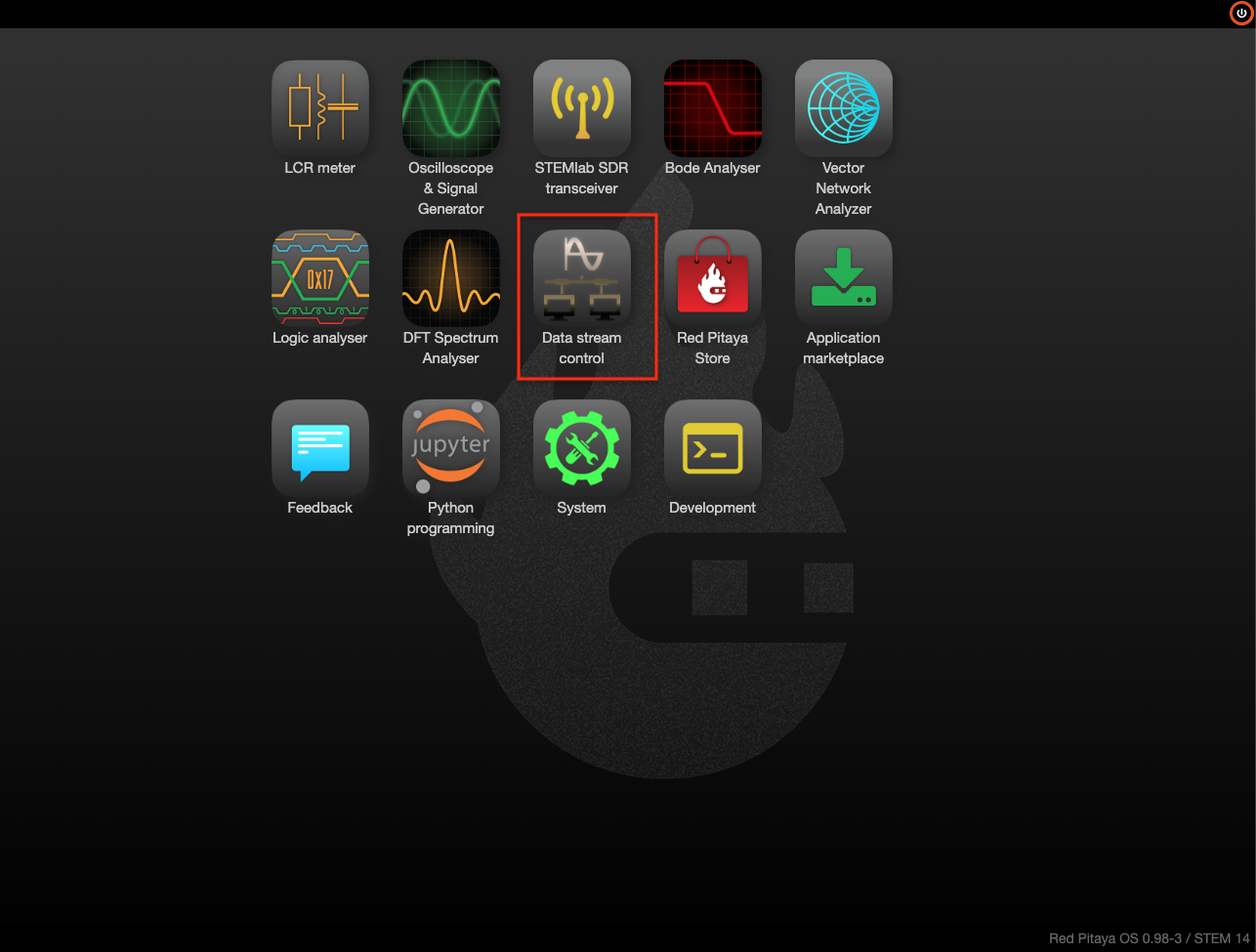
From inside the Red Pitaya Linux OS (SSH connection) by loading the stream_app FPGA image and running streaming-server.
overlay.sh stream_app
streaming-server
Once the streaming server is running, LED 2 will turn on and LED 0 will blink, indicating that the application is ready.
Application interface

The application interface is divided into the following sections:
ADC streaming configuration - Configuration of the ADC streaming settings, such as streaming mode, sampling frequency, input channel select and file format. See ADC Configuration.
DAC streaming configuration - Configuration of the DAC streaming settings, such as streaming mode and output data rate. See DAC Configuration.
DMA memory configuration - Determines the minimal block size for streaming and Deep Memory Mode reserved memory management. See Memory Configuration.
Streaming status - Controls for starting and stopping the streaming process. The status of the streaming process is also displayed here. See Web Interface Usage.
Files on the SD card - List of files saved on the SD card (acquired data and logs) and buttons for managing them. See Web Interface Usage.
PC Clients: List of downloadable clients for streaming desktop applications (Windows, Linux), command line clients (Windows, Linux) and console client for Red Pitaya itself. See Web Interface Usage.
Documentation structure
This documentation is organized into the following sections:
Getting help
Check the Data Streaming Limitations section to understand performance constraints
Learn about Performance Optimization to achieve maximum streaming rates
Review the Examples for practical use cases
Visit the Streaming application source code on GitHub
Refer to the Technical Details section to understand how the application works
Compatibility
Red Pitaya boards are compatible with any computer operating system. However, the same cannot be said for the streaming client applications which are meant to run on the computer, which are available for Linux and Windows operating systems. Any specific requirements for the operating systems are listed below. We always recommend using the latest version of the OS and the streaming client application to ensure the best performance and compatibility.
Warning
The streaming client application and the Red Pitaya OS must be the same version. Using a client that does not match the OS version may result in connection failures or corrupted data, due to changes in the streaming protocol and data formats between releases. Always download the matching client from the streaming application interface when updating the OS.
Windows 11 - Please use Red Pitaya OS newer than 2.05-37 as older streaming client versions are incompatible with Windows 11. We recommend using the latest version of the OS and streaming client application to ensure the best performance and compatibility.