Setting up the serial console
What is a serial console?
Serial console is a text-based interface that allows users to interact with the Red Pitaya board through a serial connection. It provides a reliable way to access and manage the Red Pitaya board, especially when network connectivity is not available or when troubleshooting issues. The serial console allows users to monitor the boot process, view system logs, and execute commands directly on the Red Pitaya board.
The serial console can be used to follow the boot process:
FSBL (if debug mode is enabled)
The serial console can also be used to see the output of other bare metal applications, for example, the memory test.
U-Boot
During the boot process, U-Boot will show status and debug information.
After FSBL starts U-Boot, there is a 3-second delay before U-Boot starts the Linux kernel. If during this time a key is pressed, U-boot will stop the boot process and give the user access to its shell.
Linux console
During the boot process, Linux will show status and debug information. After the boot process is complete, the user will automatically be logged in as the root user and will have access to the Linux shell. The user can then execute commands and manage the Red Pitaya board through the serial console.
Hardware setup
Here is a list of additional hardware you will need to set up the serial console:
All Gen 2 and TI models - USB to USB-C cable
All STEMlab 125-14 and SDRlab 122-16 models - USB to micro USB cable.
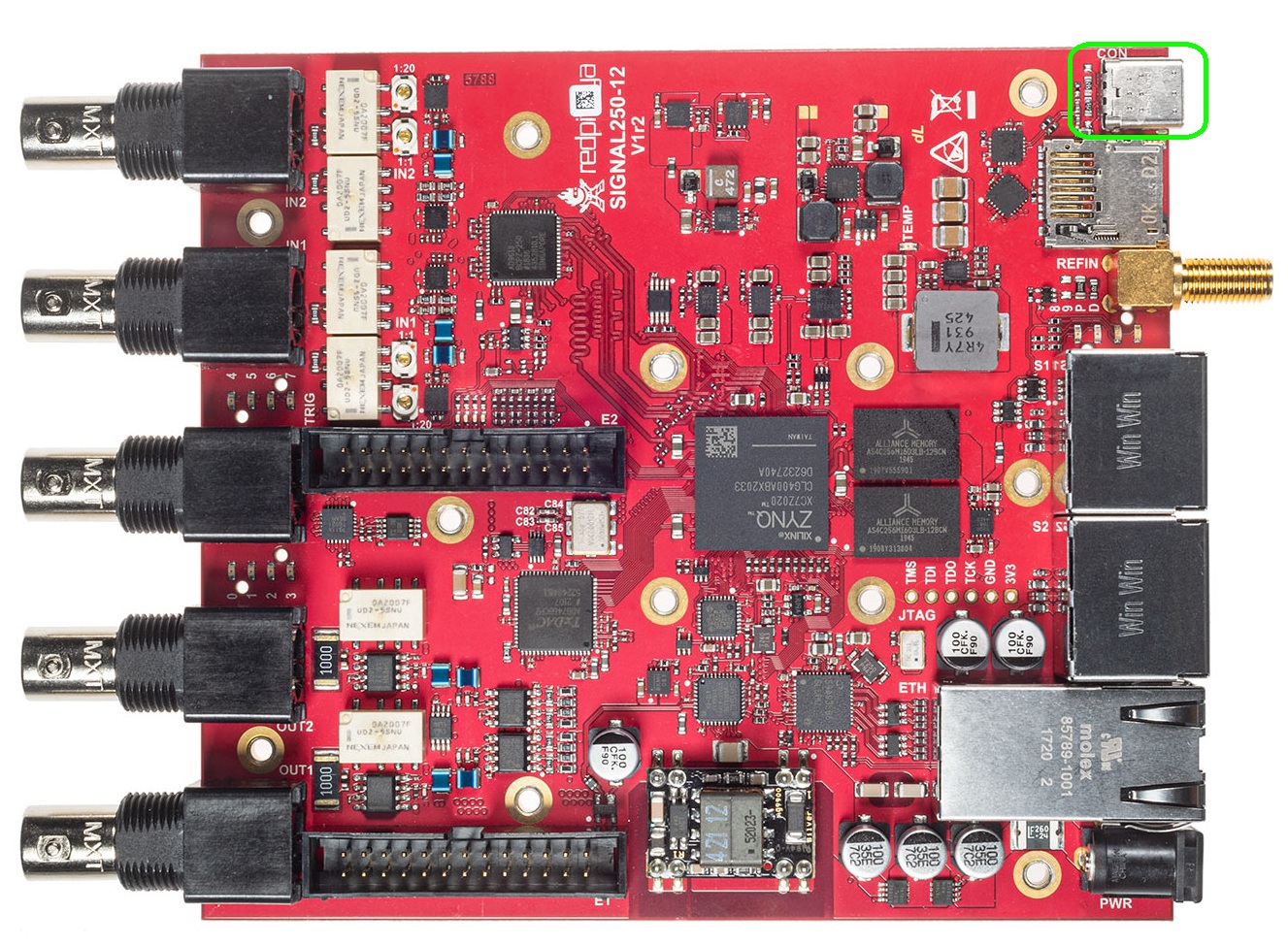
SIGNALlab 250-12 - USB to USB-C cable
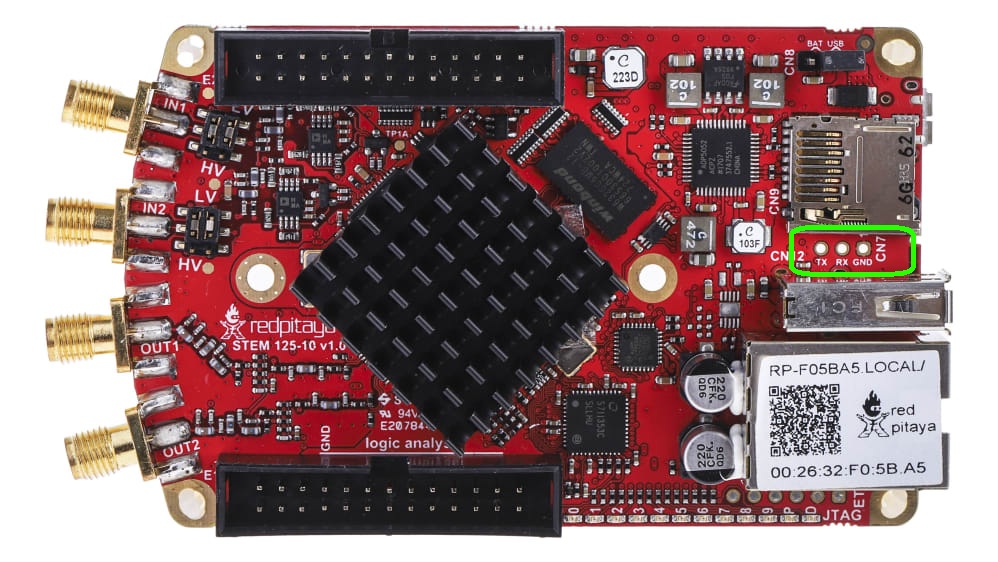
STEMlab 125-10 - serial to USB adapter (the pins must first be soldered onto the board)
Note
The serial console cable should be a data cable. Power cables do not have the necessary communication lines connected.
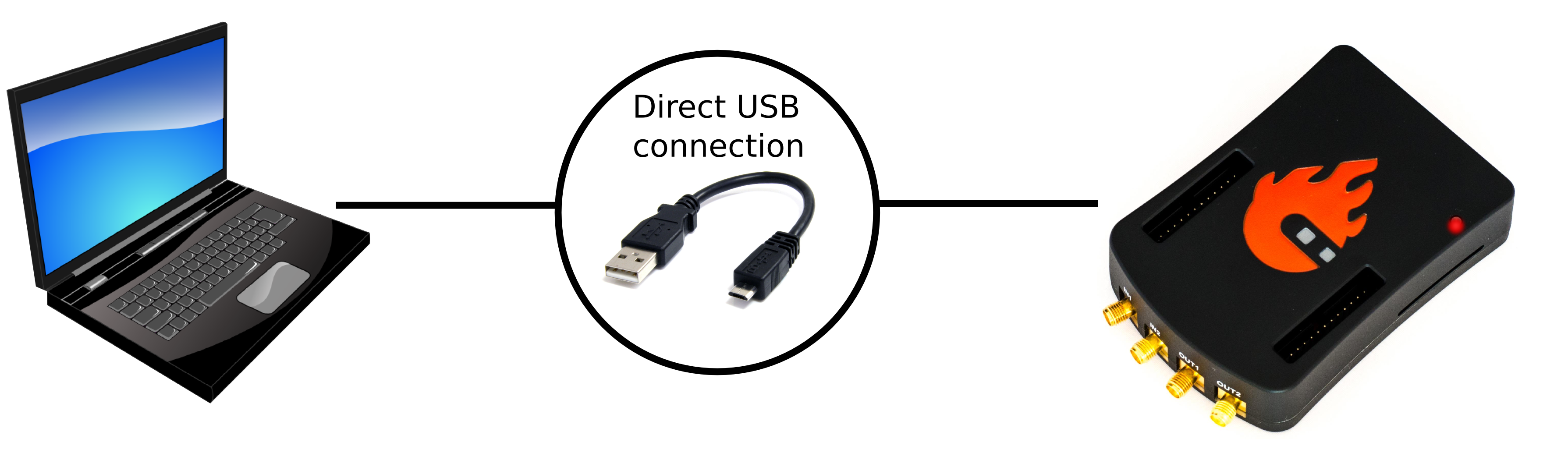
Connect your Red Pitaya’s CON port and PC with the specified cable and follow the instructions for your OS.
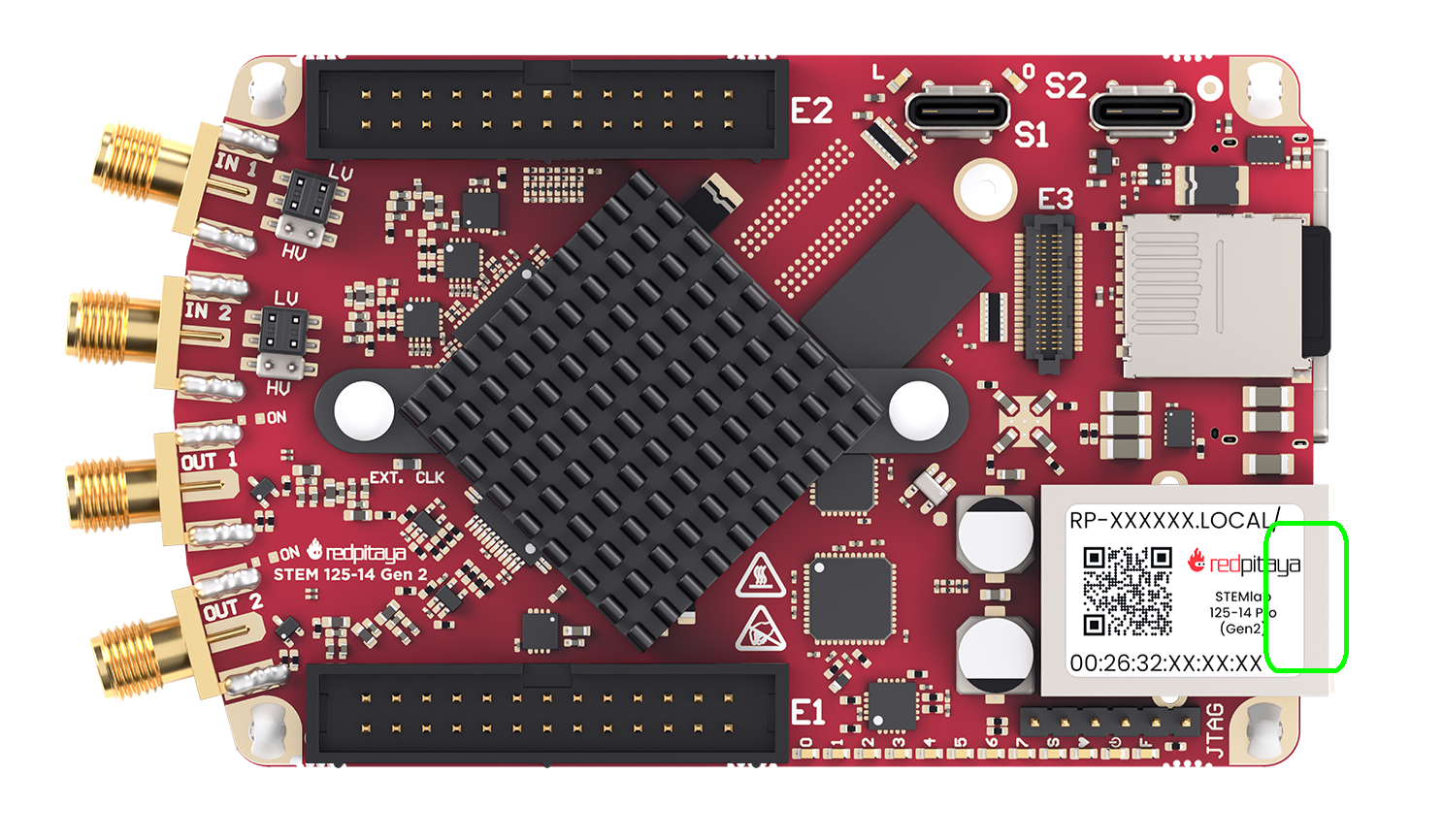
The USB-C connector for serial console is located directly beneath the Ethernet connector.
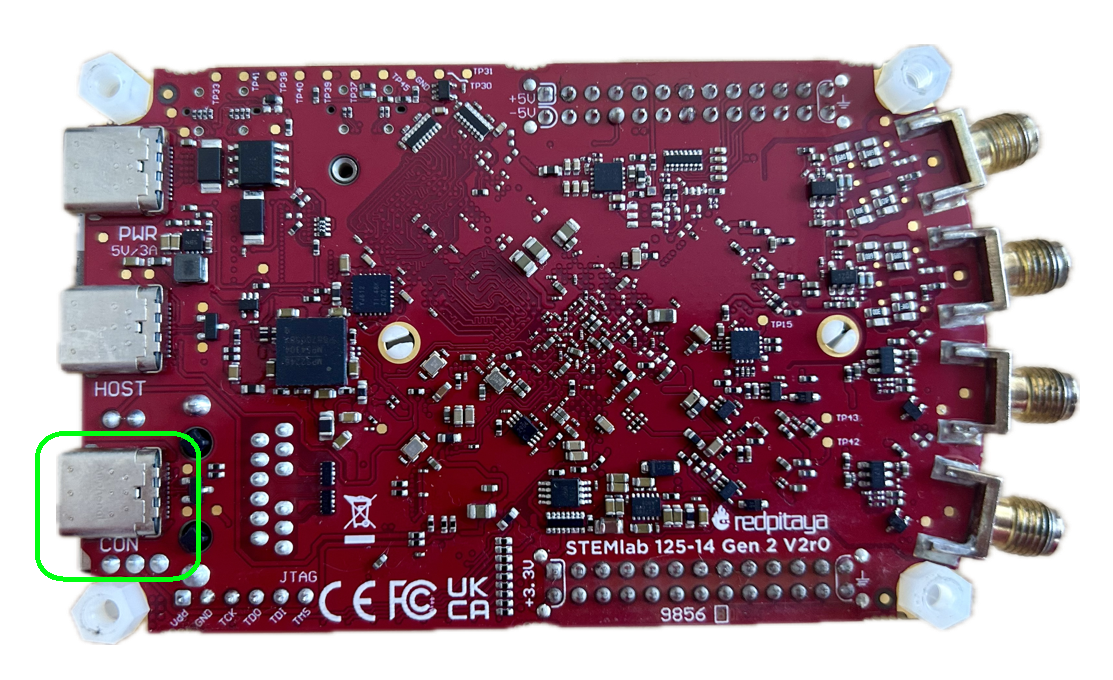
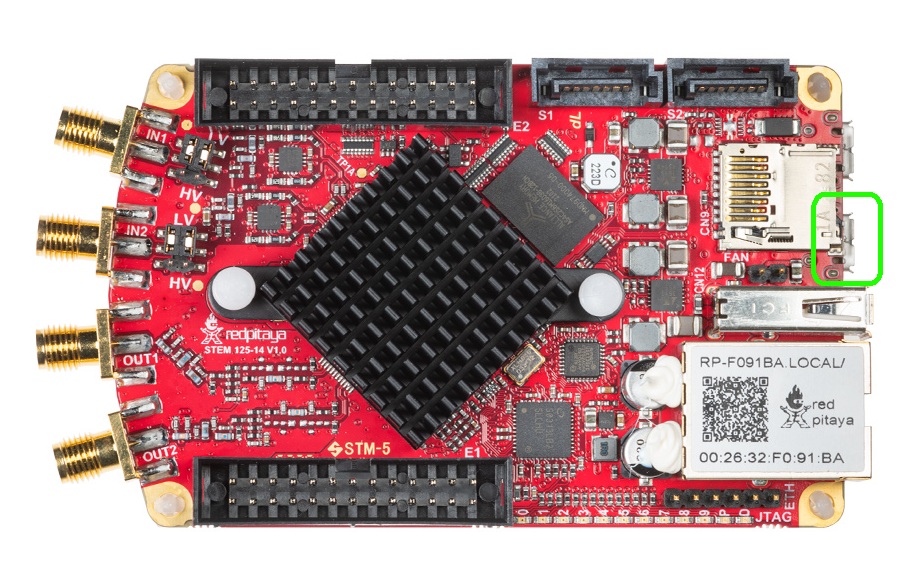
The micro USB connector for serial console is located beneath the SD card slot (towards the middle of the board).
The USB-C connector for the serial console is located on the very edge of the board, next to the SD card holder.
The serial console ports are located between the USB-A connector and the SD card holder. The pins must first be soldered onto the board before connecting the serial to USB adapter.
Note
Not all USB ports on your PC may support the serial console connection. If you are having trouble connecting, try using a different USB port on your PC.
Software requirements
At this stage it is assumed that the Red Pitaya status LEDs display the normal behaviour, indicating that the Red Pitaya is powered on and running. If this is not the case, please refer to the troubleshooting guide. The troubleshooting guide will also give you information on the expected behaviour of the Red Pitaya status LEDs.
Windows
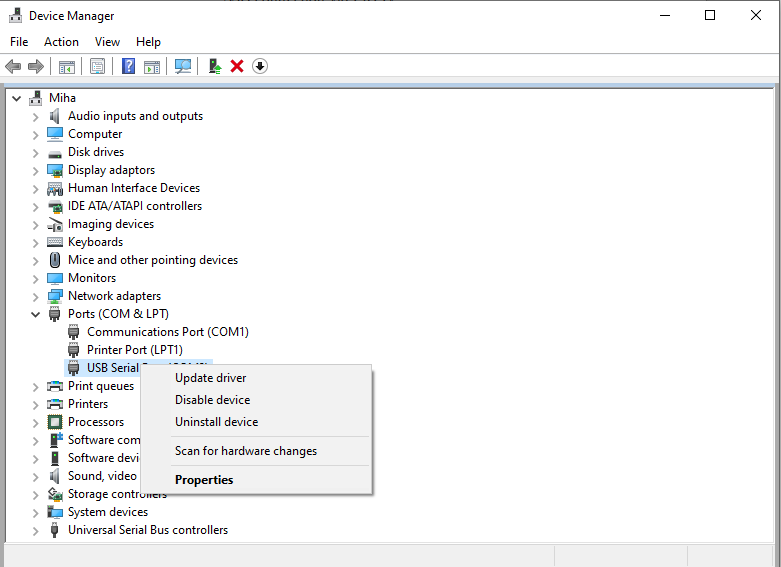
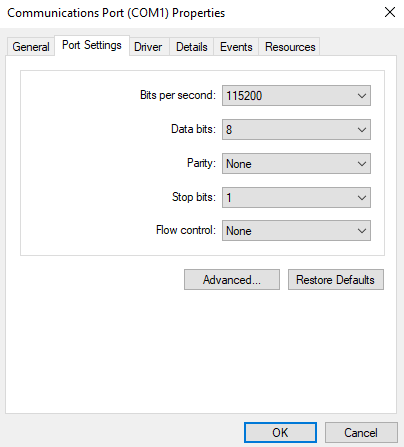
Download and install the FTDI driver on your PC. After installation, a new COM port will appear in the Device Manager, which you can use in Hyperterminal or another terminal utility to connect to Red Pitaya. Connect your Red Pitaya to the micro USB port on the board. In your terminal utility, fill in the serial port name and set the speed to 115200.
To adjust the connection settings for serial communication, right-click on the COM port and select Properties.
Boot reference must be done through Minicom or a similar serial console application.
Using Windows Subsystem for Linux (WSL)
For Windows users, we recommend using WSL to access the serial console with minicom. WSL provides a Linux environment on Windows and allows you
to connect USB devices to Linux tools.
If you haven’t set up WSL yet, please follow our WSL Setup Guide first.
Once WSL is set up, here’s how to connect the Red Pitaya serial console:
Open Windows PowerShell or Windows Terminal (we’ll call this the Windows terminal)
Open Windows Terminal as an administrator in a separate window for USB device management
In the administrator Windows terminal, list all available USB devices and find the “bus-id” of the Red Pitaya console (listed as USB Serial Converter):
usbipd listBind the Red Pitaya console to WSL:
usbipd bind --busid <bus-id>
Attach the USB serial converter to WSL:
usbipd attach --wsl --busid <bus-id>
Here is a visual representation of the commands so far:

In the first Windows terminal, start WSL:
wsl
In the WSL terminal, verify the Red Pitaya console is connected (should appear as ttyUSB0):
lsusb

Continue to the Establishing serial console connection section below
When finished, disconnect the Red Pitaya console from WSL using this command in the administrator Windows terminal:
usbipd detach --busid <bus-id>
Linux and Mac
There is broad support for USB-to-serial converters in the Linux kernel, so in most cases the converter will be detected soon after it is plugged in.
Establishing serial console connection
At this point you should have the Red Pitaya connected to your PC via a USB-to-serial converter and are able to access the Linux terminal either through the WSL or naturally from the Linux.
Check the driver output in the kernel log using dmesg:
$ dmesg
...
[95074.784075] usb 1-2.4.3: new full-speed USB device number 20 using ehci-pci
[95074.885386] usb 1-2.4.3: New USB device found, idVendor=0403, idProduct=6015
[95074.885399] usb 1-2.4.3: New USB device strings: Mfr=1, Product=2, SerialNumber=3
[95074.885406] usb 1-2.4.3: Product: FT231X USB UART
[95074.885411] usb 1-2.4.3: Manufacturer: FTDI
[95074.885416] usb 1-2.4.3: SerialNumber: DN003P0Q
[95074.890105] ftdi_sio 1-2.4.3:1.0: FTDI USB Serial Device converter detected
[95074.890228] usb 1-2.4.3: Detected FT-X
[95074.891157] usb 1-2.4.3: FTDI USB Serial Device converter now attached to ttyUSB0
The first Red Pitaya board connected to your PC will create a device named /dev/ttyUSB0. If N USB or serial devices are connected, they
will appear as /dev/ttyUSBn, where n is {0, 1, …, N-1}. To access these devices, programs should be run with sudo.
Minicom or a similar serial console application must be used to view the boot reference log.
minicom
Minicom is a text-based modem control and terminal emulation program. It is commonly used for setting up a remote serial console.
To configure minicom use the -s option.
sudo minicom -s
A configuration menu will open.
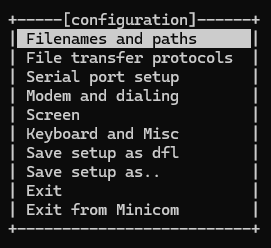
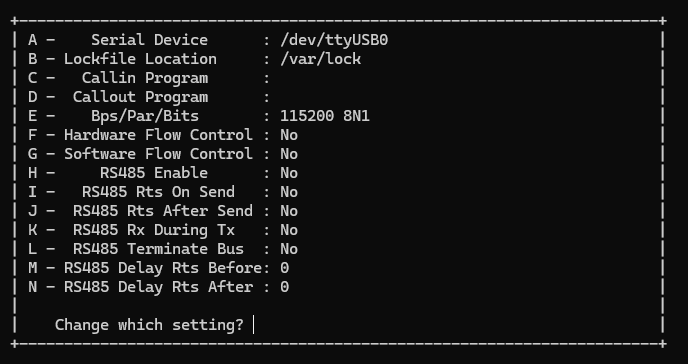
Go to Serial Port Setup, press Enter, and set up the next options:
Serial Device:
/dev/ttyUSB0(device index0or a higher number)Bps/Par/Bits:
115200 8N1(baud rate, byte length, parity, and stop bits)Hardware/Software Flow Control: No (flow control should be disabled)
Minicom requires some special Control+A key sequences to operate. The most common commands you will need are:
Control+Afollowed byXto exit Minicom
Control+Afollowed byZto open the help menu
Please see the Minicom manual for details.
After you have configured the details, exit the settings. At this point Minicom should be connected to your Red Pitaya:

If you are asked to log in into the Red Pitaya, please use the following credentials:
User name:
rootPassword:
root
Leave the Minicom open and unplug Red Pitaya from power. After plugging it back in, you should see the boot sequence for Red Pitaya.
At the begginning of the boot sequence, you can press any key to stop the autoboot process and enter the Zynq U-Boot shell. This is useful for debugging and changing the boot parameters.

If you are not able to see the boot sequence, please check the connection between the Red Pitaya and your PC, and the settings in Minicom.
screen
GNU screen is, in general, a terminal multiplexer. It also supports connecting to a serial console and provides syntax to configure the
serial connection’s baud rate, byte length, parity, and flow control.
Compared to Minicom, it provides better fonts and support for terminal window resizing.
$ sudo screen /dev/ttyUSB1 115200 cs8
Similar to Minicom, screen requires some special Control+A key sequences to operate.
Please see the screen manual for details.
The configuration is the same as for Minicom. Please refer to the previous section for details.
Reference boot sequence
You can compare these reference boot sequences against yours.
U-Boot
U-Boot 2022.01 (Nov 27 2024 - 05:10:38 +0000), Build: jenkins-RED_PITAYA_UNIFY-Kernel-212

CPU:   Zynq 7z010
Silicon: v3.1
DRAM:  ECC disabled 512 MiB
Flash: 0 Bytes
NAND:  0 MiB
MMC:   mmc@e0100000: 0
Loading Environment from nowhere... OK
In:    serial@e0000000
Out:   serial@e0000000
Err:   serial@e0000000
Net:
ZYNQ GEM: e000b000, mdio bus e000b000, phyaddr 1, interface rgmii-id
eth0: ethernet@e000b000
Hit any key to stop autoboot:  3    2    1     0
Running script from SD...
Device: mmc@e0100000
Manufacturer ID: 3
OEM: 5344
Name: SB16G
Bus Speed: 50000000
Mode: SD High Speed (50MHz)
Rd Block Len: 512
SD version 3.0
High Capacity: Yes
Capacity: 14.8 GiB
Bus Width: 4-bit
Erase Group Size: 512 Bytes
5097 bytes read in 14 ms (355.5 KiB/s)
## Executing script at 02000000
Setting bus to 0

EEPROM @0x50 read: addr 0x00000000  off 0x1804  count 1024 ... done
202704 bytes read in 54 ms (3.6 MiB/s)
design filename = "red_pitaya_top;UserID=0XFFFFFFFF;COMPRESS=TRUE;Version=2020.1"
part number = "7z010clg400"
date = "2024/11/27"
time = "00:07:47"
bytes in bitstream = 202580
zynq_align_dma_buffer: Align buffer at 1000007c to 10000040(swap 1)
INFO:post config was not run, please run manually if needed
Set devicetree and ramdisk high loading address to 0x20000000
Loading from SD card (FAT file system) to memory
Device: mmc@e0100000
Manufacturer ID: 3
OEM: 5344
Name: SB16G
Bus Speed: 50000000
Mode: SD High Speed (50MHz)
Rd Block Len: 512
SD version 3.0
High Capacity: Yes
Capacity: 14.8 GiB
Bus Width: 4-bit
Erase Group Size: 512 Bytes
Load uImage
6429880 bytes read in 364 ms (16.8 MiB/s)
Load dts/z10_125/devicetree.dtb
18180 bytes read in 33 ms (537.1 KiB/s)
Booting Linux kernel with ramdisk and devicetree
## Booting kernel from Legacy Image at 02004000 ...
    Image Name:   Linux-5.15.0-xilinx
    Image Type:   ARM Linux Kernel Image (uncompressed)
    Data Size:    6429816 Bytes = 6.1 MiB
    Load Address: 00008000
    Entry Point:  00008000
    Verifying Checksum ... OK
## Flattened Device Tree blob at 04000000
    Booting using the fdt blob at 0x4000000
    Loading Kernel Image
    Loading Device Tree to 1ead7000, end 1eade703 ... OK

Starting kernel ...

Booting Linux on physical CPU 0x0
Linux version 5.15.0-xilinx (jenkins@instance-1) (arm-linux-gnueabihf-gcc (GCC) 8.2.0, GNU ld (Linaro_Binutils-) 2.31) #1 SMP PREEMPT Wed Nov 27 05:12:29 UTC 2024
CPU: ARMv7 Processor [413fc090] revision 0 (ARMv7), cr=18c5387d
CPU: PIPT / VIPT nonaliasing data cache, VIPT aliasing instruction cache
OF: fdt: Machine model: xlnx,zynq-7000
Memory policy: Data cache writealloc
OF: reserved mem: OVERLAP DETECTED!
buffer@1000000 (0x01000000--0x03000000) overlaps with labuf@1000000 (0x01000000--0x03000000)
Reserved memory: created CMA memory pool at 0x1f000000, size 16 MiB
OF: reserved mem: initialized node linux,cma, compatible id shared-dma-pool
Zone ranges:
Normal   [mem 0x0000000000000000-0x000000001fffffff]
HighMem  empty
Movable zone start for each node
Early memory node ranges
node   0: [mem 0x0000000000000000-0x000000001fffffff]
Initmem setup node 0 [mem 0x0000000000000000-0x000000001fffffff]
percpu: Embedded 12 pages/cpu s18572 r8192 d22388 u49152
Built 1 zonelists, mobility grouping on.  Total pages: 129920
Kernel command line: console=ttyPS0,115200 root=/dev/mmcblk0p2 ro rootfstype=ext4 earlyprintk rootwait uio_pdrv_genirq.of_id=generic-uio
Unknown command line parameters: earlyprintk
Dentry cache hash table entries: 65536 (order: 6, 262144 bytes, linear)
Inode-cache hash table entries: 32768 (order: 5, 131072 bytes, linear)
mem auto-init: stack:off, heap alloc:off, heap free:off
Memory: 455572K/524288K available (9216K kernel code, 373K rwdata, 2740K rodata, 1024K init, 142K bss, 52332K reserved, 16384K cma-reserved, 0K highmem)
rcu: Preemptible hierarchical RCU implementation.
rcu:        RCU event tracing is enabled.
rcu:        RCU restricting CPUs from NR_CPUS=4 to nr_cpu_ids=2.
    Trampoline variant of Tasks RCU enabled.
    Tracing variant of Tasks RCU enabled.
rcu: RCU calculated value of scheduler-enlistment delay is 10 jiffies.
rcu: Adjusting geometry for rcu_fanout_leaf=16, nr_cpu_ids=2
NR_IRQS: 16, nr_irqs: 16, preallocated irqs: 16
efuse mapped to (ptrval)
slcr mapped to (ptrval)
GIC physical location is 0xf8f01000
L2C: platform modifies aux control register: 0x72360000 -> 0x72760000
L2C: DT/platform modifies aux control register: 0x72360000 -> 0x72760000
L2C-310 erratum 769419 enabled
L2C-310 enabling early BRESP for Cortex-A9
L2C-310 full line of zeros enabled for Cortex-A9
L2C-310 ID prefetch enabled, offset 1 lines
L2C-310 dynamic clock gating enabled, standby mode enabled
L2C-310 cache controller enabled, 8 ways, 512 kB
L2C-310: CACHE_ID 0x410000c8, AUX_CTRL 0x76760001
random: get_random_bytes called from start_kernel+0x36c/0x5f8 with crng_init=0
zynq_clock_init: clkc starts at (ptrval)
Zynq clock init
sched_clock: 64 bits at 166MHz, resolution 6ns, wraps every 4398046511103ns
clocksource: arm_global_timer: mask: 0xffffffffffffffff max_cycles: 0x26703d7dd8, max_idle_ns: 440795208065 ns
Switching to timer-based delay loop, resolution 6ns
Console: colour dummy device 80x30
Calibrating delay loop (skipped), value calculated using timer frequency.. 333.33 BogoMIPS (lpj=1666666)
pid_max: default: 32768 minimum: 301
Mount-cache hash table entries: 1024 (order: 0, 4096 bytes, linear)
Mountpoint-cache hash table entries: 1024 (order: 0, 4096 bytes, linear)
CPU: Testing write buffer coherency: ok
CPU0: Spectre v2: using BPIALL workaround
CPU0: thread -1, cpu 0, socket 0, mpidr 80000000
Setting up static identity map for 0x100000 - 0x100060
rcu: Hierarchical SRCU implementation.
smp: Bringing up secondary CPUs ...
CPU1: thread -1, cpu 1, socket 0, mpidr 80000001
CPU1: Spectre v2: using BPIALL workaround
smp: Brought up 1 node, 2 CPUs
SMP: Total of 2 processors activated (666.66 BogoMIPS).
CPU: All CPU(s) started in SVC mode.
devtmpfs: initialized
VFP support v0.3: implementor 41 architecture 3 part 30 variant 9 rev 4
clocksource: jiffies: mask: 0xffffffff max_cycles: 0xffffffff, max_idle_ns: 19112604462750000 ns
futex hash table entries: 512 (order: 3, 32768 bytes, linear)
pinctrl core: initialized pinctrl subsystem
NET: Registered PF_NETLINK/PF_ROUTE protocol family
DMA: preallocated 256 KiB pool for atomic coherent allocations
thermal_sys: Registered thermal governor 'step_wise'
cpuidle: using governor menu
amba f8801000.etb: Fixing up cyclic dependency with replicator
amba f8803000.tpiu: Fixing up cyclic dependency with replicator
amba f8804000.funnel: Fixing up cyclic dependency with replicator
amba f889c000.ptm: Fixing up cyclic dependency with f8804000.funnel
amba f889d000.ptm: Fixing up cyclic dependency with f8804000.funnel
hw-breakpoint: found 5 (+1 reserved) breakpoint and 1 watchpoint registers.
hw-breakpoint: maximum watchpoint size is 4 bytes.
e0000000.serial: ttyPS0 at MMIO 0xe0000000 (irq = 33, base_baud = 6249999) is a xuartps
printk: console [ttyPS0] enabled
e0001000.serial: ttyPS1 at MMIO 0xe0001000 (irq = 34, base_baud = 6249999) is a xuartps
raid6: int32x8  gen()   121 MB/s
raid6: int32x8  xor()    83 MB/s
raid6: int32x4  gen()   134 MB/s
raid6: int32x4  xor()    90 MB/s
raid6: int32x2  gen()   205 MB/s
raid6: int32x2  xor()   129 MB/s
raid6: int32x1  gen()   171 MB/s
raid6: int32x1  xor()   110 MB/s
raid6: using algorithm int32x2 gen() 205 MB/s
raid6: .... xor() 129 MB/s, rmw enabled
raid6: using intx1 recovery algorithm
vgaarb: loaded
SCSI subsystem initialized
usbcore: registered new interface driver usbfs
usbcore: registered new interface driver hub
usbcore: registered new device driver usb
pps_core: LinuxPPS API ver. 1 registered
pps_core: Software ver. 5.3.6 - Copyright 2005-2007 Rodolfo Giometti <giometti@linux.it>
PTP clock support registered
EDAC MC: Ver: 3.0.0
FPGA manager framework
Advanced Linux Sound Architecture Driver Initialized.
clocksource: Switched to clocksource arm_global_timer
NET: Registered PF_INET protocol family
IP idents hash table entries: 8192 (order: 4, 65536 bytes, linear)
tcp_listen_portaddr_hash hash table entries: 512 (order: 0, 6144 bytes, linear)
TCP established hash table entries: 4096 (order: 2, 16384 bytes, linear)
TCP bind hash table entries: 4096 (order: 3, 32768 bytes, linear)
TCP: Hash tables configured (established 4096 bind 4096)
UDP hash table entries: 256 (order: 1, 8192 bytes, linear)
UDP-Lite hash table entries: 256 (order: 1, 8192 bytes, linear)
NET: Registered PF_UNIX/PF_LOCAL protocol family
RPC: Registered named UNIX socket transport module.
RPC: Registered udp transport module.
RPC: Registered tcp transport module.
RPC: Registered tcp NFSv4.1 backchannel transport module.
PCI: CLS 0 bytes, default 64
armv7-pmu f8891000.pmu: hw perfevents: no interrupt-affinity property, guessing.
hw perfevents: enabled with armv7_cortex_a9 PMU driver, 7 counters available
Initialise system trusted keyrings
workingset: timestamp_bits=14 max_order=17 bucket_order=3
jffs2: version 2.2. (NAND) (SUMMARY)  � 2001-2006 Red Hat, Inc.
xor: measuring software checksum speed
    arm4regs        :  1059 MB/sec
    8regs           :   808 MB/sec
    32regs          :   806 MB/sec
xor: using function: arm4regs (1059 MB/sec)
Key type asymmetric registered
Asymmetric key parser 'x509' registered
io scheduler mq-deadline registered
io scheduler kyber registered
zynq-pinctrl 700.pinctrl: zynq pinctrl initialized
dma-pl330 f8003000.dmac: Loaded driver for PL330 DMAC-241330
dma-pl330 f8003000.dmac:    DBUFF-128x8bytes Num_Chans-8 Num_Peri-4 Num_Events-16
brd: module loaded
loop: module loaded
libphy: Fixed MDIO Bus: probed
CAN device driver interface
libphy: MACB_mii_bus: probed
macb e000b000.ethernet eth0: Cadence GEM rev 0x00020118 at 0xe000b000 irq 37 (00:26:32:f0:a2:35)
e1000e: Intel(R) PRO/1000 Network Driver
e1000e: Copyright(c) 1999 - 2015 Intel Corporation.
usbcore: registered new interface driver brcmfmac
usbcore: registered new interface driver rt2800usb
ehci_hcd: USB 2.0 'Enhanced' Host Controller (EHCI) Driver
ehci-pci: EHCI PCI platform driver
usbcore: registered new interface driver cdc_acm
cdc_acm: USB Abstract Control Model driver for USB modems and ISDN adapters
usbcore: registered new interface driver usb-storage
usbcore: registered new interface driver usbserial_generic
usbserial: USB Serial support registered for generic
usbcore: registered new interface driver ch341
usbserial: USB Serial support registered for ch341-uart
usbcore: registered new interface driver cp210x
usbserial: USB Serial support registered for cp210x
usbcore: registered new interface driver ftdi_sio
usbserial: USB Serial support registered for FTDI USB Serial Device
usbcore: registered new interface driver pl2303
usbserial: USB Serial support registered for pl2303
usbcore: registered new interface driver usb_serial_simple
usbserial: USB Serial support registered for carelink
usbserial: USB Serial support registered for zio
usbserial: USB Serial support registered for funsoft
usbserial: USB Serial support registered for flashloader
usbserial: USB Serial support registered for google
usbserial: USB Serial support registered for libtransistor
usbserial: USB Serial support registered for vivopay
usbserial: USB Serial support registered for moto_modem
usbserial: USB Serial support registered for motorola_tetra
usbserial: USB Serial support registered for novatel_gps
usbserial: USB Serial support registered for hp4x
usbserial: USB Serial support registered for suunto
usbserial: USB Serial support registered for siemens_mpi
ULPI transceiver vendor/product ID 0x0424/0x0007
Found SMSC USB3320 ULPI transceiver.
ULPI integrity check: passed.
ci_hdrc ci_hdrc.0: EHCI Host Controller
ci_hdrc ci_hdrc.0: new USB bus registered, assigned bus number 1
ci_hdrc ci_hdrc.0: USB 2.0 started, EHCI 1.00
hub 1-0:1.0: USB hub found
hub 1-0:1.0: 1 port detected
i2c_dev: i2c /dev entries driver
at24 0-0050: supply vcc not found, using dummy regulator
at24 0-0050: 8192 byte 24c64 EEPROM, writable, 32 bytes/write
at24 0-0051: supply vcc not found, using dummy regulator
cdns-i2c e0004000.i2c: 400 kHz mmio e0004000 irq 30
Driver for 1-wire Dallas network protocol.
cdns-wdt f8005000.watchdog: Xilinx Watchdog Timer with timeout 10s
EDAC MC: ECC not enabled
Xilinx Zynq CpuIdle Driver started
sdhci: Secure Digital Host Controller Interface driver
sdhci: Copyright(c) Pierre Ossman
sdhci-pltfm: SDHCI platform and OF driver helper
ledtrig-cpu: registered to indicate activity on CPUs
clocksource: ttc_clocksource: mask: 0xffff max_cycles: 0xffff, max_idle_ns: 537538477 ns
timer #0 at (ptrval), irq=50
usbcore: registered new interface driver usbhid
usbhid: USB HID core driver
fpga_manager fpga0: Xilinx Zynq FPGA Manager registered
mmc0: SDHCI controller on e0100000.mmc [e0100000.mmc] using ADMA
NET: Registered PF_INET6 protocol family
Segment Routing with IPv6
In-situ OAM (IOAM) with IPv6
sit: IPv6, IPv4 and MPLS over IPv4 tunneling driver
NET: Registered PF_PACKET protocol family
can: controller area network core
NET: Registered PF_CAN protocol family
can: raw protocol
can: broadcast manager protocol
can: netlink gateway - max_hops=1
zynq_pm_remap_ocm: no compatible node found for 'mmio-sram'
mmc0: new high speed SDHC card at address aaaa
zynq_pm_suspend_init: Unable to map OCM.
mmcblk0: mmc0:aaaa SB16G 14.8 GiB
Registering SWP/SWPB emulation handler
Loading compiled-in X.509 certificates
mmcblk0: p1 p2
Btrfs loaded, crc32c=crc32c-generic, zoned=no, fsverity=no
of-fpga-region fpga-full: FPGA Region probed
of_cfs_init
of_cfs_init: OK
cfg80211: Loading compiled-in X.509 certificates for regulatory database
cfg80211: Loaded X.509 cert 'sforshee: 00b28ddf47aef9cea7'
platform regulatory.0: Direct firmware load for regulatory.db failed with error -2
ALSA device list:
cfg80211: failed to load regulatory.db
No soundcards found.
EXT4-fs (mmcblk0p2): INFO: recovery required on readonly filesystem
EXT4-fs (mmcblk0p2): write access will be enabled during recovery
random: fast init done
EXT4-fs (mmcblk0p2): recovery complete
EXT4-fs (mmcblk0p2): mounted filesystem with ordered data mode. Opts: (null). Quota mode: disabled.
VFS: Mounted root (ext4 filesystem) readonly on device 179:2.
devtmpfs: mounted
Freeing unused kernel image (initmem) memory: 1024K
Run /sbin/init as init process
systemd[1]: System time before build time, advancing clock.
systemd[1]: Failed to find module 'autofs4'
systemd[1]: systemd 249.11-0ubuntu3.12 running in system mode (+PAM +AUDIT +SELINUX +APPARMOR +IMA +SMACK +SECCOMP +GCRYPT +GNUTLS +OPENSSL +ACL +BLKID +CURL +ELFUTILS +FIDO2 +IDN2 -IDN +IPTC +KMOD +LIBCRYPTSETUP +LIBFDISK +PCRE2 -PWQUALITY -P11KIT -QRENCODE +BZIP2 +LZ4 +XZ +ZLIB +ZSTD -XKBCOMMON +UTMP +SYSVINIT default-hierarchy=unified)
systemd[1]: Detected architecture arm.

Welcome to Ubuntu 22.04.5 LTS!

systemd[1]: Hostname set to <rp-f0a235>.
systemd[1]: Using hardware watchdog 'cdns_wdt watchdog', version 0, device /dev/watchdog
systemd[1]: Set hardware watchdog to 5s.
systemd[1]: /etc/systemd/system/jupyter.service:8: Standard output type syslog is obsolete, automatically updating to journal. Please update your unit file, and consider removing the setting altogether.
systemd[1]: /etc/systemd/system/jupyter.service:9: Standard output type syslog is obsolete, automatically updating to journal. Please update your unit file, and consider removing the setting altogether.
systemd[1]: /etc/systemd/system/jupyter.service:16: PIDFile= references a path below legacy directory /var/run/, updating /var/run/jupyter.pid � /run/jupyter.pid; please update the unit file accordingly.
random: systemd: uninitialized urandom read (16 bytes read)
systemd[1]: Queued start job for default target Multi-User System.
random: systemd: uninitialized urandom read (16 bytes read)
systemd[1]: Created slice Slice /system/modprobe.
[  OK  ] Created slice Slice /system/modprobe.
random: systemd: uninitialized urandom read (16 bytes read)
systemd[1]: Created slice Slice /system/serial-getty.
[  OK  ] Created slice Slice /system/serial-getty.
systemd[1]: Created slice Slice /system/systemd-fsck.
[  OK  ] Created slice Slice /system/systemd-fsck.
systemd[1]: Created slice User and Session Slice.
[  OK  ] Created slice User and Session Slice.
systemd[1]: Started ntp-systemd-netif.path.
[  OK  ] Started ntp-systemd-netif.path.
systemd[1]: Started Dispatch Password Requests to Console Directory Watch.
[  OK  ] Started Dispatch Password �ts to Console Directory Watch.
systemd[1]: Started Forward Password Requests to Wall Directory Watch.
[  OK  ] Started Forward Password R�uests to Wall Directory Watch.
systemd[1]: Condition check resulted in Arbitrary Executable File Formats File System Automount Point being skipped.
systemd[1]: Reached target Local Encrypted Volumes.
[  OK  ] Reached target Local Encrypted Volumes.
systemd[1]: Reached target Path Units.
[  OK  ] Reached target Path Units.
systemd[1]: Reached target Remote File Systems.
[  OK  ] Reached target Remote File Systems.
systemd[1]: Reached target Slice Units.
[  OK  ] Reached target Slice Units.
systemd[1]: Reached target Swaps.
[  OK  ] Reached target Swaps.
systemd[1]: Reached target Local Verity Protected Volumes.
[  OK  ] Reached target Local Verity Protected Volumes.
systemd[1]: Listening on fsck to fsckd communication Socket.
[  OK  ] Listening on fsck to fsckd communication Socket.
systemd[1]: Listening on initctl Compatibility Named Pipe.
[  OK  ] Listening on initctl Compatibility Named Pipe.
systemd[1]: Condition check resulted in Journal Audit Socket being skipped.
systemd[1]: Listening on Journal Socket (/dev/log).
[  OK  ] Listening on Journal Socket (/dev/log).
systemd[1]: Listening on Journal Socket.
[  OK  ] Listening on Journal Socket.
systemd[1]: Listening on Network Service Netlink Socket.
[  OK  ] Listening on Network Service Netlink Socket.
systemd[1]: Listening on udev Control Socket.
[  OK  ] Listening on udev Control Socket.
systemd[1]: Listening on udev Kernel Socket.
[  OK  ] Listening on udev Kernel Socket.
systemd[1]: Condition check resulted in Huge Pages File System being skipped.
systemd[1]: Mounting POSIX Message Queue File System...
        Mounting POSIX Message Queue File System...
systemd[1]: Mounting Kernel Debug File System...
        Mounting Kernel Debug File System...
systemd[1]: Condition check resulted in Kernel Trace File System being skipped.
systemd[1]: Starting Journal Service...
        Starting Journal Service...
systemd[1]: Starting Restore / save the current clock...
        Starting Restore / save the current clock...
systemd[1]: Starting Set the console keyboard layout...
        Starting Set the console keyboard layout...
systemd[1]: Condition check resulted in Create List of Static Device Nodes being skipped.
systemd[1]: Starting Load Kernel Module configfs...
        Starting Load Kernel Module configfs...
systemd[1]: Starting Load Kernel Module drm...
        Starting Load Kernel Module drm...
systemd[1]: Starting Load Kernel Module efi_pstore...
        Starting Load Kernel Module efi_pstore...
systemd[1]: Starting Load Kernel Module fuse...
        Starting Load Kernel Module fuse...
systemd[1]: Starting File System Check on Root Device...
        Starting File System Check on Root Device...
systemd[1]: Starting Load Kernel Modules...
        Starting Load Kernel Modules...
systemd[1]: Starting Generate network units from Kernel command line...
        Starting Generate network �ts from Kernel command line...
systemd[1]: Starting Coldplug All udev Devices...
        Starting Coldplug All udev Devices...
systemd[1]: Started Journal Service.
[  OK  ] Started Journal Service.
[  OK  ] Mounted POSIX Message Queue File System.
[  OK  ] Mounted Kernel Debug File System.
[  OK  ] Finished Restore / save the current clock.
[  OK  ] Finished Load Kernel Module configfs.
[  OK  ] Finished Load Kernel Module drm.
[  OK  ] Finished Load Kernel Module efi_pstore.
[  OK  ] Finished Load Kernel Module fuse.
[  OK  ] Finished Set the console keyboard layout.
[  OK  ] Finished File System Check on Root Device.
[  OK  ] Finished Load Kernel Modules.
[  OK  ] Finished Generate network units from Kernel command line.
        Mounting Kernel Configuration File System...
[  OK  ] Started File System Check Daemon to report status.
        Starting Remount Root and Kernel File Systems...
        Starting Apply Kernel Variables...
EXT4-fs (mmcblk0p2): re-mounted. Opts: errors=remount-ro. Quota mode: disabled.
[  OK  ] Mounted Kernel Configuration File System.
[  OK  ] Finished Remount Root and Kernel File Systems.
[  OK  ] Finished Apply Kernel Variables.
        Starting Load/Save Random Seed...
        Starting Create System Users...
[  OK  ] Finished Coldplug All udev Devices.
[  OK  ] Finished Create System Users.
        Starting Create Static Device Nodes in /dev...
[  OK  ] Finished Create Static Device Nodes in /dev.
[  OK  ] Reached target Preparation for Local File Systems.
        Mounting /var/log...
        Starting Rule-based Manage�for Device Events and Files...
[  OK  ] Mounted /var/log.
        Starting Flush Journal to Persistent Storage...
[  OK  ] Finished Flush Journal to Persistent Storage.
[  OK  ] Started Rule-based Manager for Device Events and Files.
[  OK  ] Found device /dev/ttyPS0.
[  OK  ] Found device /dev/mmcblk0p1.
        Mounting /boot...
        Starting File System Check on /dev/mmcblk0p1...
[  OK  ] Mounted /boot.
[  OK  ] Finished File System Check on /dev/mmcblk0p1.
        Mounting /opt/redpitaya...
[  OK  ] Mounted /opt/redpitaya.
[  OK  ] Reached target Local File Systems.
        Starting Set console font and keymap...
        Starting Create Volatile Files and Directories...
[  OK  ] Finished Set console font and keymap.
[  OK  ] Finished Create Volatile Files and Directories.
        Starting Load Kernel Module efi_pstore...
        Starting Load Kernel Module fuse...
        Starting Record System Boot/Shutdown in UTMP...
[  OK  ] Finished Load Kernel Module efi_pstore.
[  OK  ] Finished Load Kernel Module fuse.
[  OK  ] Finished Record System Boot/Shutdown in UTMP.
[  OK  ] Reached target System Initialization.
[  OK  ] Started Daily apt download activities.
[  OK  ] Started Daily apt upgrade and clean activities.
[  OK  ] Started Daily dpkg database backup timer.
[  OK  ] Started Periodic ext4 Onli�ata Check for All Filesystems.
[  OK  ] Started Discard unused blocks once a week.
[  OK  ] Started Message of the Day.
[  OK  ] Started Daily Cleanup of Temporary Directories.
[  OK  ] Reached target Timer Units.
[  OK  ] Listening on Avahi mDNS/DNS-SD Stack Activation Socket.
[  OK  ] Reached target Socket Units.
[  OK  ] Reached target Basic System.
[  OK  ] Listening on D-Bus System Message Bus Socket.
[  OK  ] Started D-Bus System Message Bus.
        Starting Remove Stale Onli�t4 Metadata Check Snapshots...
        Starting Set hostname to redpitaya-[MAC]...
[  OK  ] Reached target Preparation for Network.
        Starting Service for startup wifi...
[  OK  ] Started ntp-systemd-netif.service.
        Starting Service for an ap�s connected to the E3 slot....
        Starting sockproc enables Lua running shell scripts...
        Starting User Login Management...
        Starting WPA supplicant...
[  OK  ] Started Service for an app� is connected to the E3 slot..
[  OK  ] Started Service for startup wifi.
[  OK  ] Started sockproc enables Lua running shell scripts.
[  OK  ] Started WPA supplicant.
        Starting Hostname Service...
[  OK  ] Finished Load/Save Random Seed.
[  OK  ] Started User Login Management.
[  OK  ] Finished Remove Stale Onli�ext4 Metadata Check Snapshots.
[  OK  ] Started Hostname Service.
[  OK  ] Finished Set hostname to redpitaya-[MAC].
        Starting Network Configuration...
[  OK  ] Started Network Configuration.
        Starting Wait for Network to be Configured...
        Starting Network Name Resolution...
[  OK  ] Started Network Name Resolution.
[  OK  ] Reached target Network.
[  OK  ] Reached target Host and Network Name Lookups.
        Starting Avahi mDNS/DNS-SD Stack...
[  OK  ] Started Jupyter notebook server.
        Starting Network Time Service...
[  OK  ] Started Service for startup script Red Pitaya.
        Starting Customized Nginx �for Red Pitaya applications...
        Starting OpenBSD Secure Shell server...
        Starting Permit User Sessions...
[  OK  ] Finished Permit User Sessions.
[  OK  ] Started Avahi mDNS/DNS-SD Stack.
[  OK  ] Started Serial Getty on ttyPS0.
        Starting Set console scheme...
[  OK  ] Finished Set console scheme.
[  OK  ] Created slice Slice /system/getty.
[  OK  ] Started Getty on tty1.
[  OK  ] Reached target Login Prompts.
[  OK  ] Started Network Time Service.
[  OK  ] Finished Wait for Network to be Configured.
[  OK  ] Started OpenBSD Secure Shell server.
[  OK  ] Reached target Network is Online.
[  OK  ] Started ntp-systemd-netif.service.
        Starting LSB: Shell In A Box Daemon...
[  OK  ] Started Customized Nginx w�r for Red Pitaya applications.
[  OK  ] Started LSB: Shell In A Box Daemon.
[  OK  ] Reached target Multi-User System.
        Starting Record Runlevel Change in UTMP...
[  OK  ] Finished Record Runlevel Change in UTMP.

Ubuntu 22.04.5 LTS rp-f0a235 ttyPS0

rp-f0a235 login: root (automatic login)

Welcome to Ubuntu 22.04.5 LTS (GNU/Linux 5.15.0-xilinx armv7l)

* Documentation:  https://help.ubuntu.com
* Management:     https://landscape.canonical.com
* Support:        https://ubuntu.com/pro

This system has been minimized by removing packages and content that are
not required on a system that users do not log into.

To restore this content, you can run the 'unminimize' command.
##############################################################################
# Red Pitaya GNU/Linux Ecosystem
# Version: 2.06-6f943450b
# Build: 425
# Branch:
# Commit: 6f943450b2e4eebf9cf17d9df533fe3a03015b7c
# U-Boot: "redpitaya-v2022.1"
# Linux Kernel: "branch-redpitaya-v2024.1"
# Pro Applications: ""
##############################################################################
root@rp-f0a235:~#
U-Boot 2016.01 (Nov 16 2016 - 12:23:28 +0100), Build: jenkins-redpitaya-master-156

Model: Red Pitaya Board
Board: Xilinx Zynq
I2C:   ready
DRAM:  ECC disabled 480 MiB
I2C:EEPROM selection failed
MMC:   sdhci@e0100000: 0
In:    serial@e0000000
Out:   serial@e0000000
Err:   serial@e0000000
Model: Red Pitaya Board
Board: Xilinx Zynq
Net:   ZYNQ GEM: e000b000, phyaddr 1, interface rgmii-id
eth0: ethernet@e000b000
Hit any key to stop autoboot:  0
Running script from SD...
Device: sdhci@e0100000
Manufacturer ID: 19
OEM: 4459
Name: 00000
Tran Speed: 25000000
Rd Block Len: 512
SD version 1.0
High Capacity: Yes
Capacity: 3.7 GiB
Bus Width: 4-bit
Erase Group Size: 512 Bytes
reading u-boot.scr
1203 bytes read in 17 ms (68.4 KiB/s)
## Executing script at 02000000
Set devicetree and ramdisk high loading address to 0x20000000
Loading from SD card (FAT file system) to memory
Device: sdhci@e0100000
Manufacturer ID: 19
OEM: 4459
Name: 00000
Tran Speed: 25000000
Rd Block Len: 512
SD version 1.0
High Capacity: Yes
Capacity: 3.7 GiB
Bus Width: 4-bit
Erase Group Size: 512 Bytes
reading u-boot.scr
1203 bytes read in 17 ms (68.4 KiB/s)
## Executing script at 02000000
Set devicetree and ramdisk high loading address to 0x20000000
Loading from SD card (FAT file system) to memory
Device: sdhci@e0100000
Manufacturer ID: 19
OEM: 4459
Name: 00000
Tran Speed: 25000000
Rd Block Len: 512
SD version 1.0
High Capacity: Yes
Capacity: 3.7 GiB
Bus Width: 4-bit
Erase Group Size: 512 Bytes
reading uImage
4590664 bytes read in 404 ms (10.8 MiB/s)
reading devicetree.dtb
17342 bytes read in 19 ms (890.6 KiB/s)
Booting Linux kernel with ramdisk and devicetree
## Booting kernel from Legacy Image at 02004000 ...
    Image Name:   Linux-4.4.0-xilinx
    Image Type:   ARM Linux Kernel Image (uncompressed)
    Data Size:    4590600 Bytes = 4.4 MiB
    Load Address: 00008000
    Entry Point:  00008000
    Verifying Checksum ... OK
## Flattened Device Tree blob at 04000000
    Booting using the fdt blob at 0x4000000
    Loading Kernel Image ... OK
    Loading Device Tree to 1d33c000, end 1d3433bd ... OK
FAQ
Boot sequence not visible on the serial console
Make sure that the serial console is connected to the correct port and that the baud rate is set to 115200.
Check whether the FTDI drivers for Windows are installed correctly.
Check the status LEDs on Red Pitaya:
If the green and blue LEDs are ON and the other status LEDs are working correctly, unplug the power and repower the board. If the issue persists, please double-check the serial console instructions above or use a different cable.
If the green LED is ON, but no other LEDs are visible, this means that the boot process is stuck:
Please check whether the Red Pitaya OS is installed on the SD card.
If the OS is installed correctly and the boot log is not visible, the Zynq SoC might be damaged. In this case, please contact Red Pitaya support (support@redpitaya.com). If the board is still under warranty, we will replace it.
If the green LED is OFF, please check whether the power supply is connected and working correctly. If the power supply is good, then the board might be damaged.