Creating an FPGA project in Vivado
To ease the creation of new FPGA projects or adding new features to existing ones, Red Pitaya FPGA repository provides a set of scripts and templates, which automatically generate the existing projects.
Note
This section describes the process of creating a new project using just the Vivado development environment (FPGA projects only). For the complete building process using both the Vivado and the Vivado SDK (Vitis), please refer to the creating a Vivado SDK/Vitis project section.
Download FPGA GitHub repository
First, we will transfer the FPGA GitHub repository to our local machine. Go to the FPGA GitHub repository and download the ZIP folder of this project.
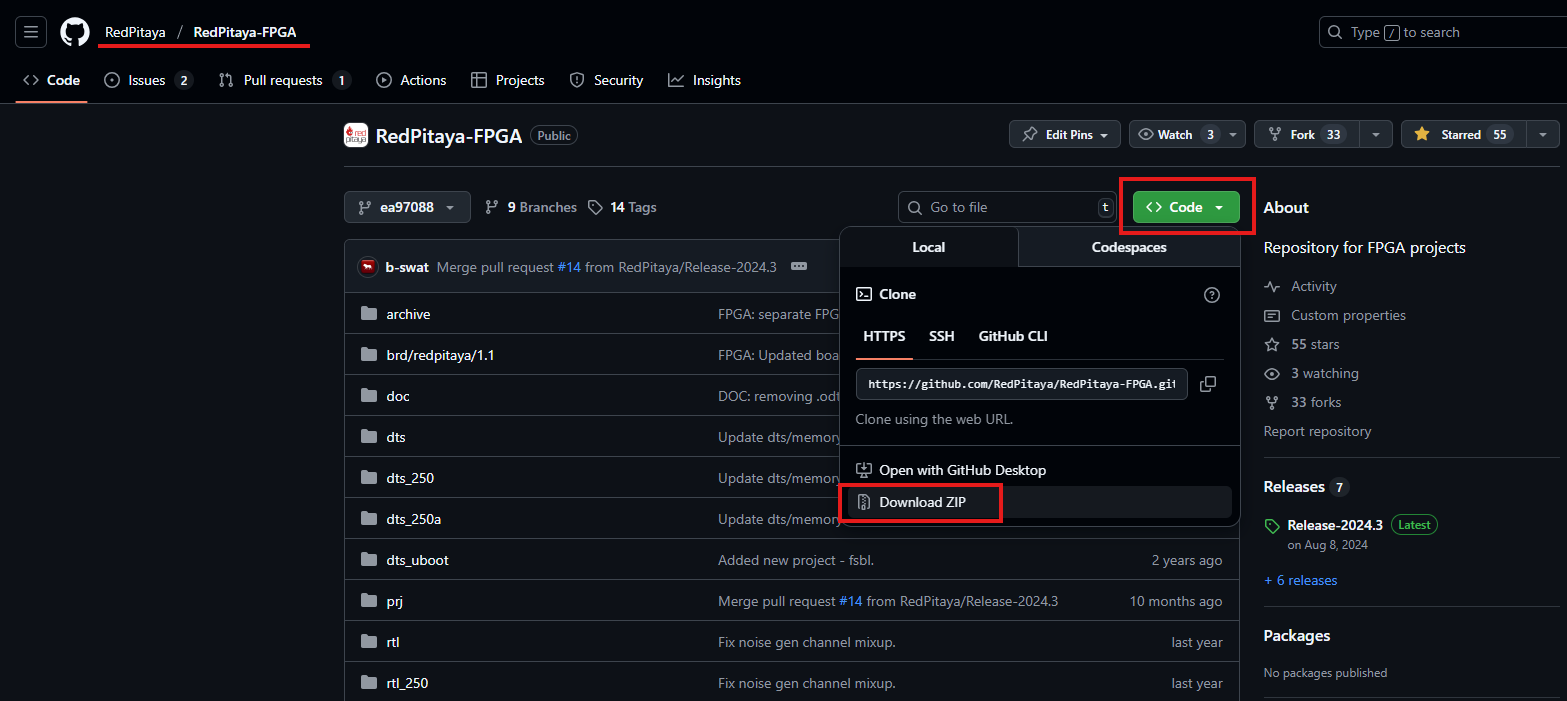
If you are using Windows, download and extract the project repository to a folder of your choice. Remember the location of the extracted repository.
As an alternative, if you are using Linux, first install Git, then navigate to the desired location and clone the Red Pitaya Git repository.
sudo apt-get install git
git clone https://github.com/RedPitaya/RedPitaya-FPGA.git
In either case, refrain from using spaces in the path to the extracted repository or the cloned repository.
Finally, rename the extracted repository folder to RedPitaya-FPGA.
Accessing older versions of the repository
The instructions above are meant for the latest version of the Red Pitaya FPGA, located in the master branch. If you are looking for an older version, please check the corresponding branch or tag in the GitHub repository.
Before OS 1.04-18, the FPGA repository was a part of the main Red Pitaya GitHub repository, and the FPGA projects were located in the fpga directory.
Build project options
When creating a new FPGA project, each user must consider the specific requirements and constraints of their target hardware platform. Each Red Pitaya board has its own specifications, which may require different configurations and optimizations in the FPGA design. To make things easier, the Red Pitaya FPGA repository provides a set of scripts and templates that can be used as a starting point for new projects. These templates include pre-configured settings and example designs that can be customized to meet the needs of individual projects.
The scripts automatically build the project depending on the selected flags. The following table shows which projects are available on which boards.
Build name |
Build Project Flag |
STEMlab 125-10 |
SIGNALlab 250-12 |
SDRlab 122-16 |
STEMlab 125-14 4-Input |
STEMlab 125-14 Gen 2 |
STEMlab 125-14 TI |
|---|---|---|---|---|---|---|---|
Active projects |
|||||||
0.94 |
v0.94 |
X |
X |
X |
X |
X |
|
0.94_250 |
v0.94_250 |
X |
|||||
stream_app |
stream_app |
X |
X |
X |
X |
X |
|
stream_app_250 |
stream_app_250 |
X |
|||||
logic |
logic |
X |
X |
X |
X |
||
logic_250 |
logic_250 |
X |
|||||
Legacy projects |
|||||||
tft |
tft |
X |
|||||
axi4lite |
axi4lite |
X |
|||||
classic |
classic |
X |
|||||
mercury |
mercury |
X |
|||||
Note
Legacy projects (tft, axi4lite, classic, mercury) are obsolete FPGA images only available on older OS versions (0.97, 0.98). They are no longer actively maintained.
Model |
Build Model flag |
|---|---|
STEMlab 125-14 PRO Gen 2
STEMlab 125-14 Gen 2
STEMlab 125-14
STEMlab 125-10
|
MODEL=Z10 |
STEMlab 125-14 Z7020 |
MODEL=Z20_14 |
SDRlab 122-16 |
MODEL=Z20 |
SIGNALlab 250-12 |
MODEL=Z20_250 |
STEMlab 125-14 4-Input |
MODEL=Z20_4 |
STEMlab 125-14 PRO Z7020 Gen 2 |
MODEL=Z20_G2 |
STEMlab 125-14 TI
STEMlab 65-16 TI
|
MODEL=Z20_ll |
Note
Each combination of build project and build model flags should be considered unique and compatible exclusively with the corresponding Red Pitaya board model. This means that a bitstream generated for one board may not work on another board, even if they share the same FPGA chip. For example, a bitstream generated for STEMlab 125-14 will not work on SDRlab 122-16, resulting in the following error upon upload.
sh: 1: echo: echo: I/O error
BIN FILE loading through FPGA manager failed
Building process
Note
Before proceeding, please check the Vivado installation instructions were followed correctly.
The automatic project generation scripts have two possible modes of operation:
Non-project mode: This mode generates a set of files that can be used to build the project without opening the Vivado GUI. It is useful for users who prefer to work with command-line tools or want to automate the build process.
Project mode: This mode generates a Vivado project that can be opened in the Vivado GUI for further editing and customization. It is useful for users who want to work with the graphical interface of Vivado and make changes to the design interactively.
Non-project mode
In non-project mode, the generated files are organized in a flat directory structure, making it easier to manage and version control the individual files. However, users lose the benefits of the Vivado project structure, such as the ability to easily open and edit the project in the Vivado GUI. Non-project mode basically uses the RTL files and constraints to generate the bitstream directly without creating a full Vivado project.
Note
The Red Pitaya FPGA repository must be downloaded through the git command, otherwise the project creation will fail.
There are five different script types available for non-project mode:
TCL script |
Functionality |
|---|---|
|
Generates the bitstream and reports. |
|
Creates a Vivado project for graphical editing (see Project mode). |
|
Generates FSBL executable binary (see SDK/Vitis project creation). |
|
Generates device tree sources (see SDK/Vitis project creation). |
|
Generates simulation files. |
Open terminal or CMD. Windows users have three options, depending on the availablity of the make utility on their computer:
CMD. If make utility is installed, then the easiest way to proceed is to follow the instructions using the Command Prompt (CMD).
Vivado HLS Command Prompt. If make utility is not installed and you have installed Vivado, you can open the Vivado HLS Command Prompt, which is a command-line interface that comes with Vivado. Please note that Vitis doesn’t come with Vivado HLS Command Prompt.
Vivado TCL console. The final option is using the Vivado TCL console, which is a built-in command-line interface within the Vivado GUI.
The final two options allow project creation without installing the make utility, but running the script will result in opening of a separate instance of Vivado window. The original window will remain open, running the script. Closing the original window will terminate the script execution and also exit the second Vivado GUI.
Navigate to the extracted FPGA repository. In this instance, we have renamed the extracted folder to RedPitaya-FPGA. If you have not renamed the folder, please use the original name.
cd "<path to Red Pitaya repository>/RedPitaya-FPGA"
Note
Contrary to Linux and Vivado, Windows uses backslashes (
\) instead of forward slashes (/) in file paths.Generate the project. Run the following command in the terminal or command prompt. Note the lack of the ``project`` keyword, which is used in the Project mode.
make PRJ=name MODEL=model
This will automatically generate the bitstream file, reports, device tree, and FSBL.
Bitstream location. The resulting bitstream .bit file is located in /prj/<project_name>/out/red_pitaya.bit.
Note
If an error occurs during the project generation, it is likely due to an incorrect Vivado version or missing dependencies. Please ensure that you have the correct version of Vivado installed and that all necessary dependencies are met. For more information on this issue, please refer to the Running the scripts in a different Vivado version section.
Project mode
The project mode generates a complete Vivado project structure, including all necessary files and directories. This allows users to open the project in the Vivado GUI and make changes as needed. Only the Red Pitaya FPGA repository is required to create a project in this mode. The project can be created using the following steps:
Open terminal or CMD. Windows users have three options, depending on the availablity of the make utility on their computer:
CMD. If make utility is installed, then the easiest way to proceed is to follow the instructions using the Command Prompt (CMD).
Vivado HLS Command Prompt. If make utility is not installed and you have installed Vivado, you can open the Vivado HLS Command Prompt, which is a command-line interface that comes with Vivado. Please note that Vitis doesn’t come with Vivado HLS Command Prompt.
Vivado TCL console. The final option is using the Vivado TCL console, which is a built-in command-line interface within the Vivado GUI.
The final two options allow project creation without installing the make utility, but running the script will result in opening of a separate instance of Vivado window. The original window will remain open, running the script. Closing the original window will terminate the script execution and also exit the second Vivado GUI.
Navigate to the extracted FPGA repository. In this instance, we have renamed the extracted folder to RedPitaya-FPGA. If you have not renamed the folder, please use the original name.
cd "<path to Red Pitaya repository>/RedPitaya-FPGA"
Note
Contrary to Linux and Vivado, Windows uses backslashes (
\) instead of forward slashes (/) in file paths.Create the project. Run the following command in the terminal or command prompt:
make project PRJ=name MODEL=model
Here are reference pictures for all three options:
Terminal/CMD
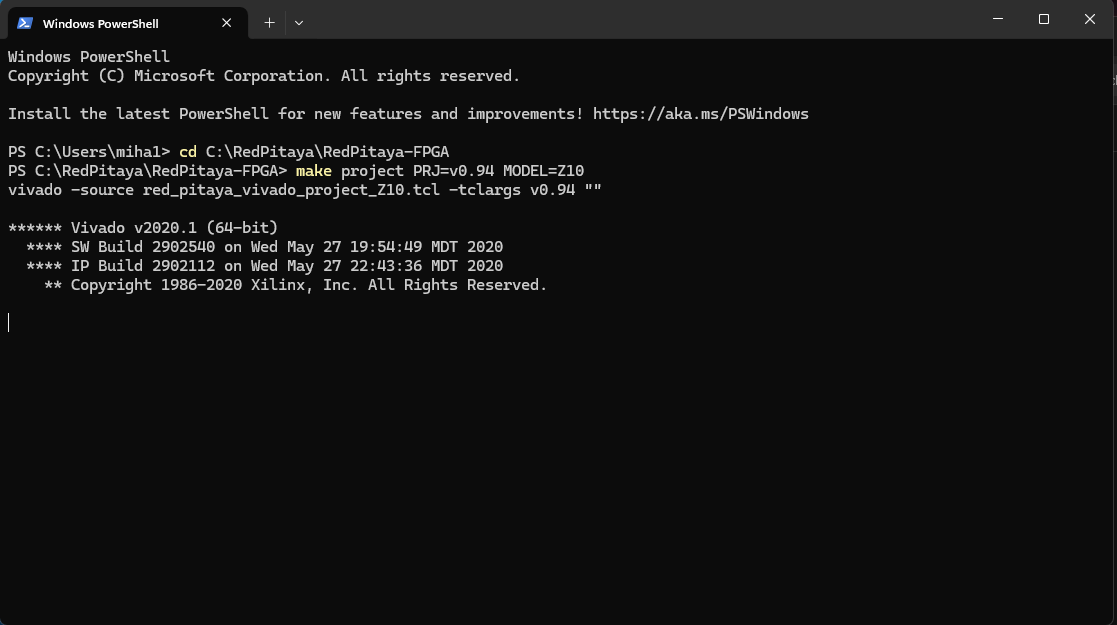
Vivado HLS Command Prompt
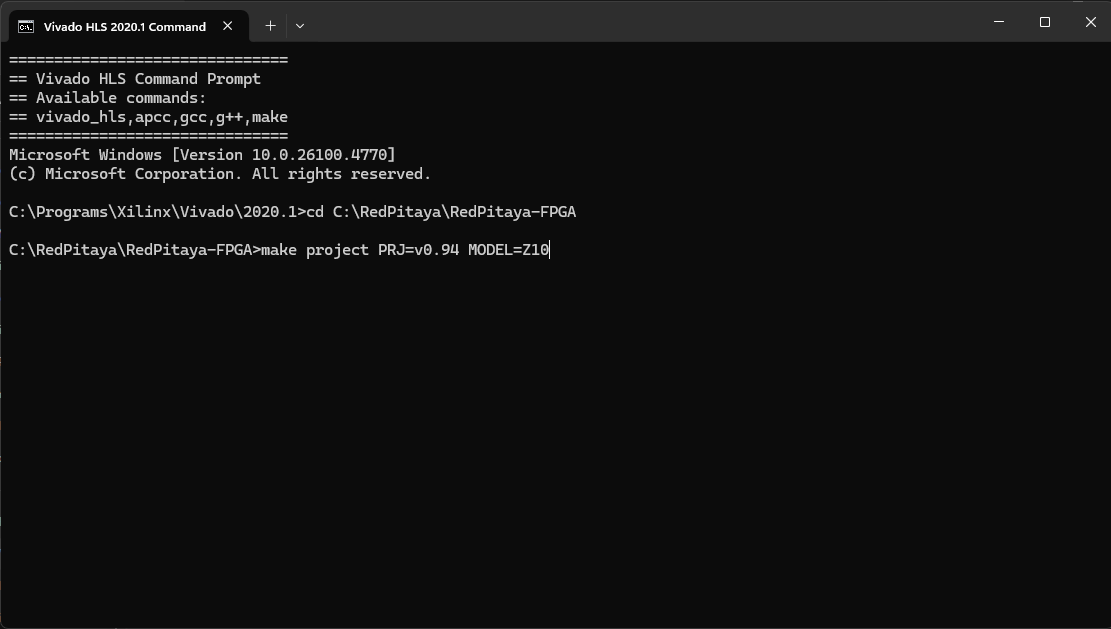
Vivado TCL Console

Modify the project. A new, blank project will be created automatically and all the necessary Red Pitaya files will be added. You can then add or write your Verilog module at the end of the red_pitaya_top.sv file, or add a new source by right-clicking the Design Sources folder and selecting Add Source. For more information on how to add sources and connect them in the design, please refer to the Modify project section.
Bitstream generation. You can now run the synthesis, implementation, and bitstream generation by clicking the corresponding buttons in the Vivado GUI. The resulting .bit file is located in prj/<project_name>/project/redpitaya.runs/impl_1/ as red_pitaya_top.bit (the name of the bitstream file matches the name of the top module of the design).
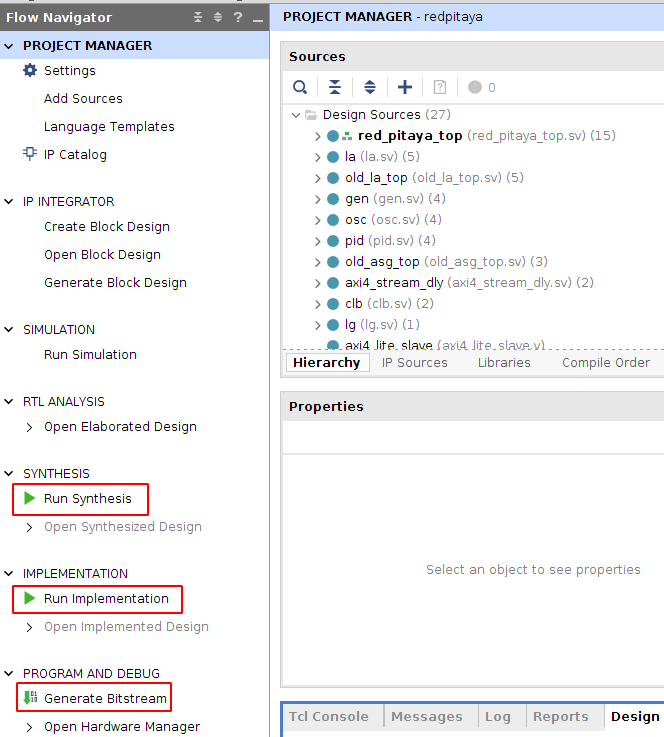
There are a few important things to note about the project creation process:
Reopen an existing project - Open Vivado and select the project from the Recent Projects list.

Recreating an existing project - Rerunning the make project command will overwrite the existing project resources. Please consider backing-up the existing project or move the important RTL resources and IP cores to a separate directory.
Running the scripts in a different Vivado version
Running the auto-project generation scripts in a different Vivado version than the one they were generated for may result in errors. This is because the scripts are tailored to specific Vivado versions and may not be compatible with others. If possible, please install the Vivado version that the scripts were generated for. If you cannot do this, you can try to modify the scripts to make them compatible with your Vivado version. Please note that this is not guaranteed to work and may require additional modifications to the scripts.
Vivado version: 2020.1
Both Project mode and Non-project mode scripts are designed to work with Vivado 2020.1 and will return the following error if run in a different Vivado version:
BD_TCL-109" "ERROR" "This script was generated using Vivado 2020.1 ...
First, find the Vivado version line in the script. It should look like this:
set scripts_vivado_version 2020.1Change 2020.1 to your version. This is a quick and dirty way to get the build working in other versions of Vivado. However, this solution could cause problems if some of the IPs used are different in your version.
To update the script properly, open the project in Project mode and select Reports > Report IP Status from the menu. A new tab will open below the code window. If not all IPs are up to date, they need to be updated. Before doing this, however, you must manually modify the TCL script to match your Vivado version; otherwise, the block design will not be created when Vivado starts.
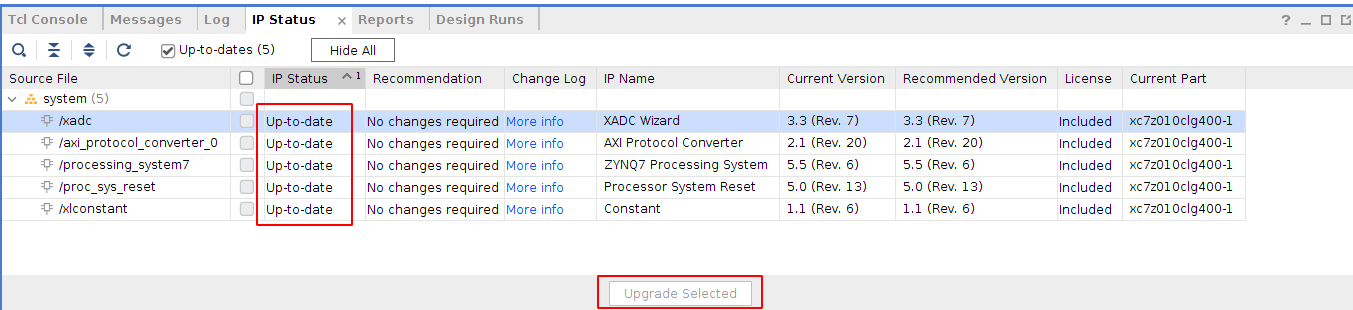
Update the script. Once the IPs are up to date, go to the Tcl console tab and run the following command.
write_bd_tcl systemZ10.tclThis generates a new tcl script that replaces the old script in the
prj/<project name>/ipdirectory.Note
Depending on the board model you are using, the script name may differ. Please check the Build project options to identify the correct script name from the project flags.