ADC API Streaming Tutorial
This tutorial demonstrates how to continuously stream data from Red Pitaya ADC channels to your computer using the streaming client library. You’ll learn how to configure acquisition parameters, handle incoming data packets, and efficiently store samples using numpy arrays.
Overview
This example shows a complete implementation of ADC streaming with:
Dual-channel simultaneous acquisition
Configurable sample rate via decimation
Real-time data loss monitoring
Memory-efficient storage in numpy arrays
Automatic buffer management
Complete source code: View adc_1_stream.py on GitHub →
Prerequisites
Hardware:
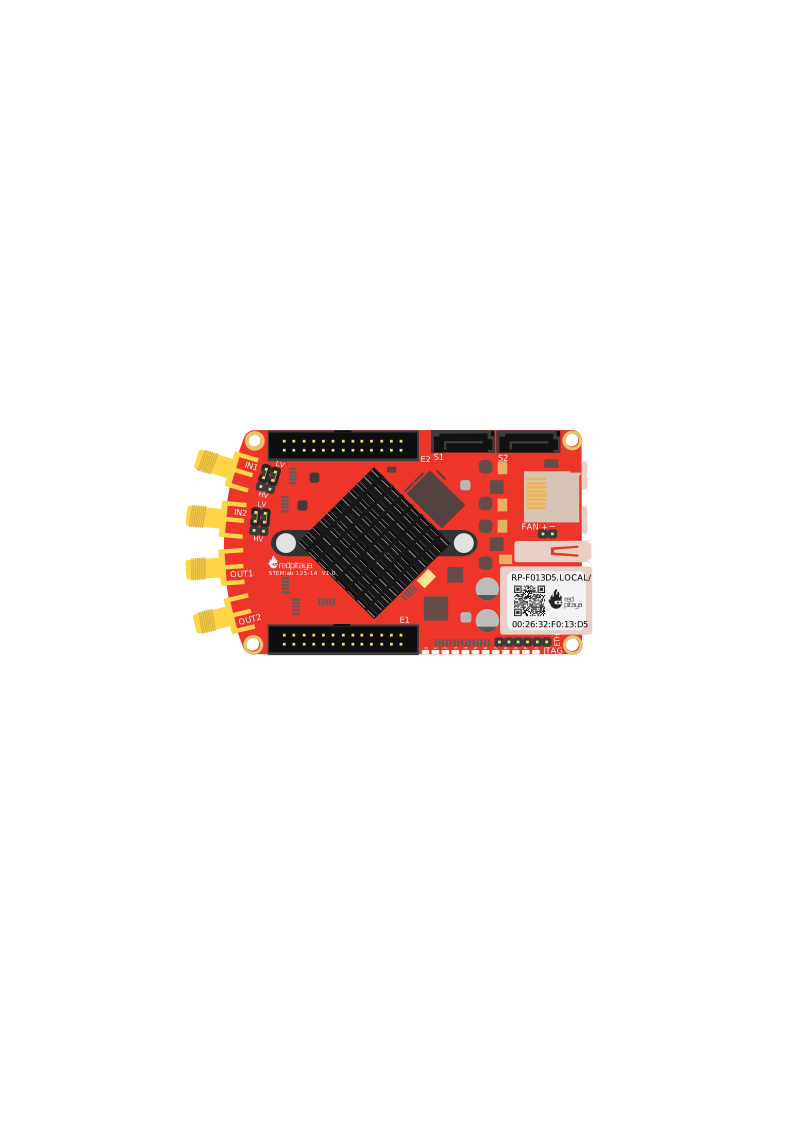
Red Pitaya device (any model)
Software:
Python 3.8 or newer
Red Pitaya streaming library (included in the Streaming command line client)
NumPy library:
pip install numpyStreaming application running on Red Pitaya (see Quick Start)
Key Concepts
Architecture
The example uses a callback-based architecture for efficient data handling:
Your Computer                           Red Pitaya
+---------------------+                +------------------+
| ADCStreamClient     |    TCP/IP      | Streaming Server |
|   |                 |<---------------|   |              |
|   +--> connect()    |                |   +--> FPGA ADC  |
|   +--> sendConfig() |                |                  |
|   +--> startStream()|                |   Deep Memory    |
|                     |                |   Buffer (4 MB)  |
| Callback Class      |                +------------------+
|   +--> receivePack()|<--- Data arrives automatically
|         +--> Store  |
+---------------------+
Note
The code examples below are simplified for clarity. For complete, production-ready code with full error handling, see the complete example on GitHub.
Sample Rate Configuration
Red Pitaya ADC runs at a base rate of 125 MS/s. The actual sample rate is controlled by decimation:
Examples:
Decimation |
Sample Rate |
Samples/Second |
|---|---|---|
1 |
125 MS/s |
125,000,000 |
8 |
15.625 MS/s |
15,625,000 |
256 |
488.28 kS/s |
488,281 |
1024 |
122.07 kS/s |
122,070 |
65536 |
1.907 kS/s |
1,907 |
Implementation Walkthrough
Step 1: Callback Class
The callback class handles incoming data packets and stores them efficiently:
class Callback(streaming.ADCCallback):
    def __init__(self, max_samples_per_channel=25_000_000):
        super().__init__()
        # Pre-allocate numpy arrays for efficiency
        self.ch1_buffer = np.zeros(max_samples_per_channel, dtype=np.int16)
        self.ch2_buffer = np.zeros(max_samples_per_channel, dtype=np.int16)
        self.counter = 0
        self.fpgaLost = 0

    def receivePack(self, client, pack):
        """Called automatically when new data arrives"""
        # Extract channel data
        ch1_data = np.array(pack.channel1.raw, dtype=np.int16)
        ch2_data = np.array(pack.channel2.raw, dtype=np.int16)

        # Store in pre-allocated arrays
        samples = len(ch1_data)
        self.ch1_buffer[self.counter:self.counter+samples] = ch1_data
        self.ch2_buffer[self.counter:self.counter+samples] = ch2_data
        self.counter += samples

        # Monitor data loss
        self.fpgaLost += pack.channel1.fpgaLost
Key Points:
Pre-allocate arrays to avoid repeated memory allocation
Use numpy for efficient numerical operations
Track
fpgaLostto detect buffer overflows
Step 2: Configuration
Configure the acquisition parameters:
# Sample rate configuration
decimation = 256                    # 125 MS/s ÷ 256 = 488 kS/s
sample_rate = 125e6 / decimation
capture_duration = 1                # seconds

# Network and memory configuration
block_size = 131072                 # 128 KB packets
adc_size = 4 * 1024 * 1024         # 4 MB FPGA buffer

# Channel selection
ch1_state = 'ON'
ch2_state = 'ON'

# Calculate buffer size
max_samples = int(sample_rate * capture_duration)
Configuration Tips:
Lower decimation = higher sample rate (may increase data loss)
Larger block_size = more efficient network transfer
Larger adc_size = more buffering (reduces data loss risk)
Step 3: Client Setup
Create and configure the streaming client:
# Create client and callback
client = streaming.ADCStreamClient()
callback = Callback(max_samples_per_channel=max_samples)
client.setReceiveDataCallback(callback.__disown__())

# Connect to Red Pitaya
if not client.connect():
    print("ERROR: Failed to connect!")
    exit(1)

# Send configuration
client.sendConfig('adc_decimation', f'{decimation}')
client.sendConfig('block_size', f'{block_size}')
client.sendConfig('adc_size', f'{adc_size}')
client.sendConfig('channel_state_1', ch1_state)
client.sendConfig('channel_state_2', ch2_state)
Note
The __disown__() method transfers ownership of the callback to the client, preventing premature garbage collection.
Step 4: Start Streaming
Begin acquisition and wait for completion:
# Start streaming
if not client.startStreaming():
    print("ERROR: Failed to start streaming!")
    exit(1)

print("Streaming started - collecting data...")

# Block until complete (or Ctrl+C to stop)
try:
    client.wait()
except KeyboardInterrupt:
    print("\nStopping...")
    client.stopStreaming()

# Retrieve results
ch1_samples, ch2_samples = callback.get_data()
print(f"Collected {len(ch1_samples):,} samples per channel")
print(f"Data loss: {callback.fpgaLost} samples")
Expected Results
When you run the example, you should see output similar to:
======================================================================
Red Pitaya ADC Streaming Configuration
======================================================================
Sample rate:     0.49 MS/s (decimation: 256)
Capture time:    1 seconds
Samples/channel: 488,281
Memory usage:    1.9 MB total
======================================================================

Connecting to Red Pitaya...
Configuring streaming parameters...
Current decimation: 1

Starting data acquisition...
Streaming started - collecting data...

======================================================================
ACQUISITION COMPLETE
======================================================================
Total samples received: 976,562
Samples lost by FPGA:   0

Channel 1: 488,281 samples collected
  Min:   -145  Max:    132  Mean:   -2.34
  First 10 samples: [-12  -8  -3   2   8  12  15  18  19  18]

Channel 2: 488,281 samples collected
  Min:    -98  Max:     87  Mean:    1.12
  First 10 samples: [  5   8  10  11  10   8   5   1  -3  -7]
======================================================================
Troubleshooting
Data Loss (fpgaLost > 0)
Symptoms: Samples lost by FPGA is non-zero
Causes & Solutions:
Sample rate too high for network
Increase decimation:
decimation = 512or higherReduce number of active channels
Network congestion
Use wired Ethernet (not Wi-Fi)
Increase
block_sizefor more efficient packets
FPGA buffer too small
Increase
adc_size:adc_size = 8 * 1024 * 1024(8 MB)
Connection Failed
Symptoms: Failed to connect!
Solutions:
Verify streaming server is running (LED 2 on, LED 0 blinking)
Check Red Pitaya is reachable:
ping rp-xxxxxx.localEnsure streaming application is loaded:
overlay.sh stream_appCheck firewall settings on your computer
No Data Received
Symptoms: counter stays at 0
Solutions:
Verify channels are enabled:
channel_state_1 = 'ON'Check configuration was accepted:
client.getConfig('channel_state_1')Restart streaming server on Red Pitaya
Next Steps
Now that you understand basic ADC streaming:
Process in real-time - Add signal processing in
receivePack()callbackSave to file - Export data as CSV, HDF5, or binary formats
Visualize live - Use matplotlib for real-time plotting
Multi-channel - Synchronize multiple boards for 4+ channel acquisition
Complete Source Code
View the complete, production-ready implementation: adc_1_stream.py on GitHub →
The GitHub version includes:
Full error handling and validation
Detailed inline comments
Configuration validation
Memory usage calculations
Output formatting and statistics