Interactive voltage setting on a slow analog output
Description
This example shows how to set analog voltage on slow analog Red Pitaya outputs using a MATLAB slider. Slow analog outputs on the Red Pitaya are in the range of 0 to 1.8 Volts.
Required hardware
Red Pitaya device
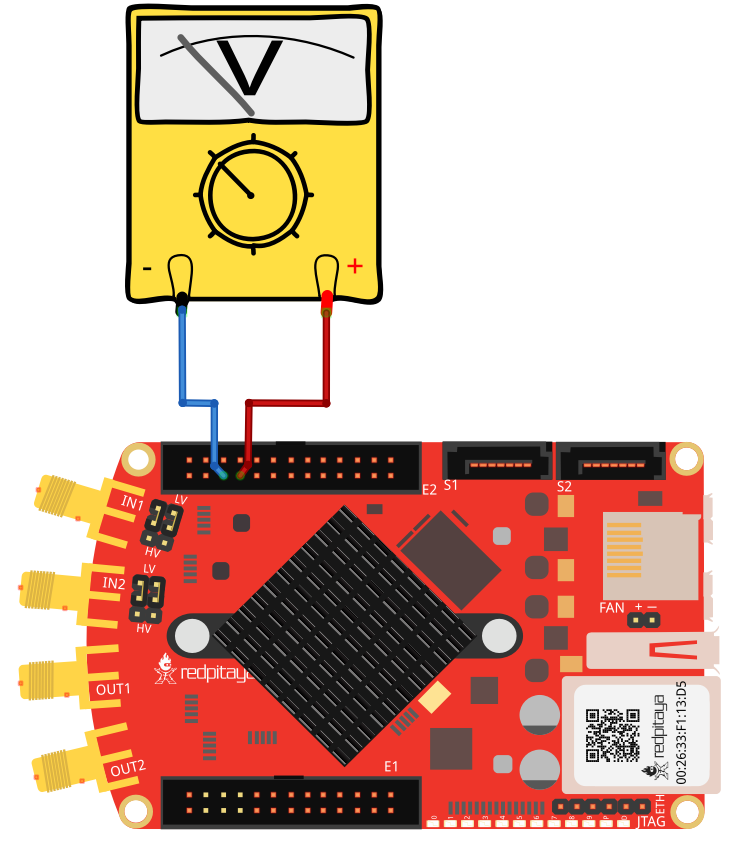
Voltmeter
Wiring example:
Required software
2.00-23 or higher OS
Note
This code is written for 2.00-23 or higher OS. For older OS versions, please check when specific commands were released (a note is added to each command introduced in 2.00 or higher verisons).
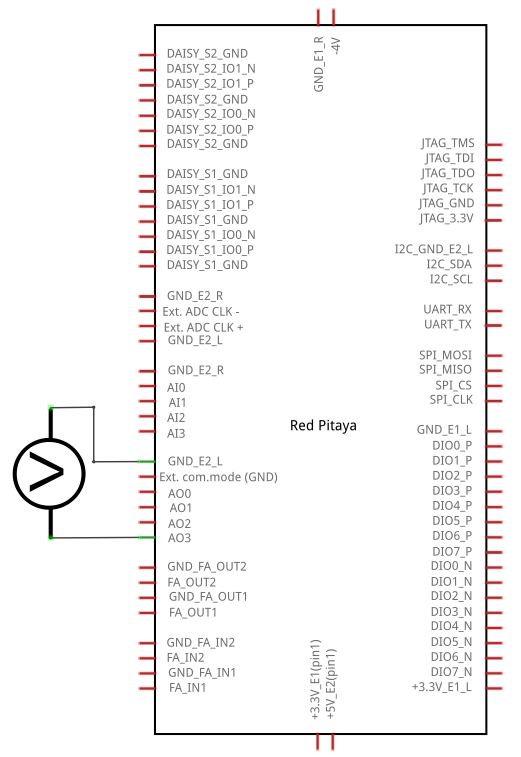
Circuit
SCPI Code Examples
Code - MATLAB®
The code is written in MATLAB. TCP client communication is used to establish socket communication with Red Pitaya, then SCPI commands are sent to configure the various Red Pitaya peripherals. Copy the code below into the MATLAB editor, save the project and press the Run button. Tested on MATLAB 2024b.
function RedPitaya_sliderAnalogDemo

    fig = uifigure("Position", [100 100 300 250]);      % Create figure
    p = 0;

    sld = uislider( ...                               % Create slider
        Parent= fig,...                               % Parent figure
        Value= 10,...                                 % Default value
        Limits= [0 100],...                           % Slider limits
        Orientation= 'horizontal',...                 % Orientation
        ValueChangingFcn= @(src, event)sliderCallback(src, event, p));

    function  sliderCallback(src, event, p)
        p = event.Value;

        %% Define Red Pitaya as TCP/IP object
        IP = '192.168.0.157';           % Input IP of your Red Pitaya...
        port = 5000;
        RP = tcpclient(IP, port);

        %% Open connection with your Red Pitaya
        RP.ByteOrder = "big-endian";
        configureTerminator(RP,'CR/LF');

        %% Set your output voltage value and pin
        out_voltage = num2str((1.8/100)*p);     % From 0 - 1.8 volts
        out_num = '2';                          % Analog outputs 0,1,2,3

        %% Set your SCPI command with strcat function
        scpi_command = strcat('ANALOG:PIN AOUT',out_num,',',out_voltage);

        %% Send SCPI command to Red Pitaya
        writeline(RP, scpi_command);

        %% Close connection with Red Pitaya
        clear RP;
    end
end
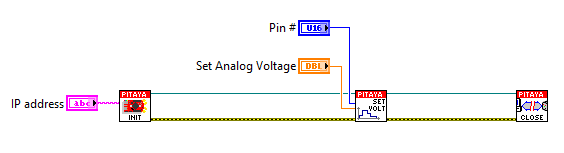
Code - LabVIEW
API Code Examples
Note
The API code examples don’t require the use of the SCPI server. Instead, the code should be compiled and executed on the Red Pitaya itself (inside Linux OS). Instructions on how to compile the code and other useful information are here.
Code - Python API
#!/usr/bin/python3
import time
import rp

analog_out = [rp.RP_AOUT0, rp.RP_AOUT1, rp.RP_AOUT2, rp.RP_AOUT3]
out_voltage = [1.0, 1.0, 1.0, 1.0]
is_float = True

# Initialize the interface
rp.rp_Init()

# Reset analog pins
rp.rp_ApinReset()

#####! Choose one of two methods, comment the other !#####
while 1:
    out_voltage = input("Enter Values of 4 analog inputs: ").split()     # Split input

    for i in range(4):
        try:
            # Try to convert input to float
            float(out_voltage[i])
        except ValueError:
            is_float = False      # set flag to false if the conversion fails
        else:
            is_float = True
            out_voltage[i] = float(out_voltage[i])  # convert input string to float

            if not 0 <= out_voltage[i] <= 1.8:   # Check for value out of bounds
                out_voltage[i] = 1.0

    if is_float:              # If input is float
        for i in range(4):
            #! METHOD 1: Configuring specific Analog pin
            rp.rp_ApinSetValue(analog_out[i], out_voltage[i])
            print (f"Set voltage on AO[{i}] to {out_voltage[i]} V")

            #! METHOD 2: Configure just slow Analog outputs
            rp.rp_AOpinSetValue(i, out_voltage[i])
            print (f"Set voltage on AO[{i}] to {out_voltage[i]} V")
    else:
        print("Invalid input")
    time.sleep(0.2)

# Release resources
rp.rp_Release()