Set analog voltage on slow analog outputs
Description
This example shows how to set the analog voltage of slow analog outputs on the Red Pitaya extension connector. Slow analog outputs on the Red Pitaya are in the range of 0 to 1.8 Volts.
Required hardware
Red Pitaya device
Voltmeter
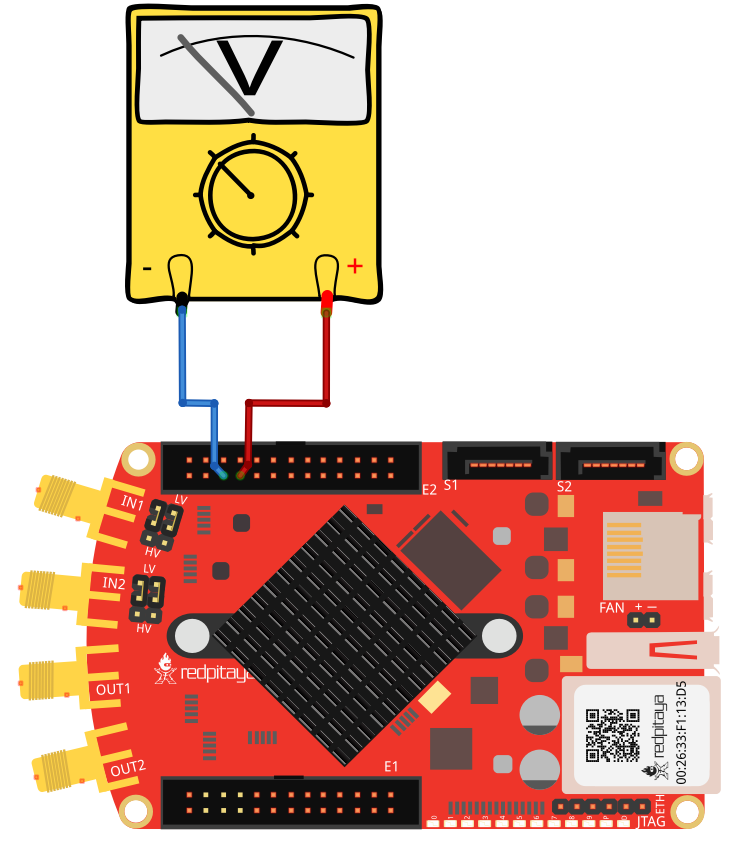
Wiring example:
Required software
2.00-23 or higher OS
Note
This code is written for 2.00-23 or higher OS. For older OS versions, please check when specific commands were released (a note is added to each command introduced in 2.00 or higher verisons).
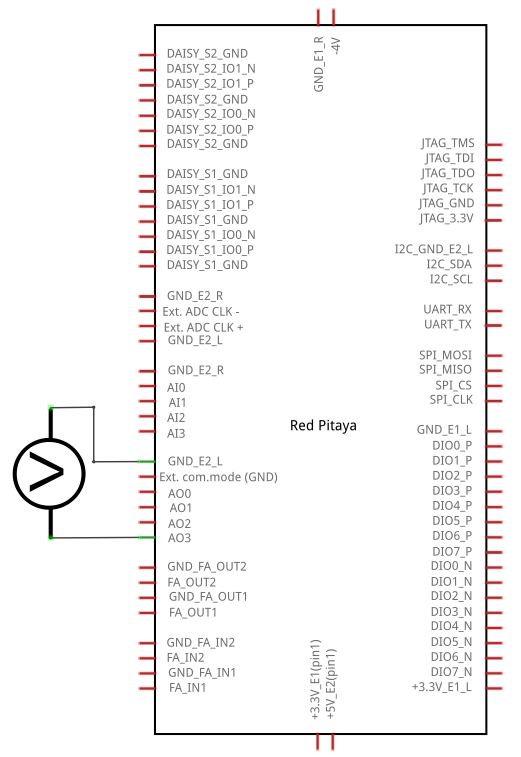
Circuit
SCPI Code Examples
Code - MATLAB®
The code is written in MATLAB. TCP client communication is used to establish socket communication with Red Pitaya, then SCPI commands are sent to configure the various Red Pitaya peripherals. Copy the code below into the MATLAB editor, save the project and press the Run button. Tested on MATLAB 2024b.
%% Define Red Pitaya as TCP/IP object
IP = 'rp-f0a235.local';         % Input IP of your Red Pitaya...
port = 5000;
RP = tcpclient(IP, port);

%% Open connection with your Red Pitaya
RP.ByteOrder = 'big-endian';
configureTerminator(RP,'CR/LF');

writeline(RP,'ANALOG:PIN AOUT0,0.3');  % 0.3 Volts is set on output 0
writeline(RP,'ANALOG:PIN AOUT1,0.9');
writeline(RP,'ANALOG:PIN AOUT2,1.0');
writeline(RP,'ANALOG:PIN AOUT3,1.5');

clear RP;
Code - Python
#!/usr/bin/env python3

import sys
import redpitaya_scpi as scpi

IP = 'rp-f066c8.local'

rp = scpi.scpi(IP)

value = [1,1,1,1]
for i in range(4):
    if len(sys.argv) > (i+2):
        value[i] = sys.argv[i+2]
    print ("Voltage setting for AO["+str(i)+"] = "+str(value[i])+"V")

for i in range(4):
    rp.tx_txt('ANALOG:PIN AOUT' + str(i) + ',' + str(value[i]))

rp.close()
Note
The Python functions are accessible with the latest version of the redpitaya_scpi.py document available on our GitHub. The functions represent a quality-of-life improvement as they combine the SCPI commands in an optimal order and also check for improper user inputs. The code should function at approximately the same speed without them.
For further information on functions please consult the redpitaya_scpi.py code.
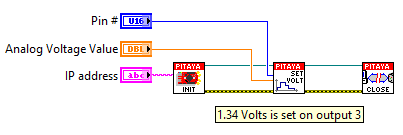
Code - LabVIEW
API Code Examples
Note
The API code examples don’t require the use of the SCPI server. Instead, the code should be compiled and executed on the Red Pitaya itself (inside Linux OS). Instructions on how to compile the code and other useful information are here.
Code - C++ API
/* Set analog voltage on slow analog output */

#include <stdio.h>
#include <stdlib.h>

#include "rp.h"

int main (int argc, char **argv) {
    float value [4];

    // Voltages can be provided as an argument (default is 1 V)
    for (int i=0; i<4; i++) {
        if (argc > (1+i)) {
            value [i] = atof(argv[1+i]);
        } else {
            value [i] = 1.0;
        }
        printf("Voltage setting for AO[%i] = %1.1fV\n", i, value [i]);
    }

    // Initialization of API
    if (rp_Init() != RP_OK) {
        fprintf(stderr, "Red Pitaya API init failed!\n");
        return EXIT_FAILURE;
    }

    // Setting a voltage for each ananlog output
    for (int i=0; i<4; i++) {
        int status = rp_AOpinSetValue(i, value[i]);
        if (status != RP_OK) {
            printf("Could not set AO[%i] voltage.\n", i);
        }
    }

    // wait for user input
    getchar();

    // Releasing resources
    rp_Release();

    return EXIT_SUCCESS;
}
Code - Python API
#!/usr/bin/python3
import rp

analog_out = [rp.RP_AOUT0, rp.RP_AOUT1, rp.RP_AOUT2, rp.RP_AOUT3]
out_voltage = [1.0, 1.0, 1.0, 1.0]

# Initialize the interface
rp.rp_Init()

# Reset analog pins
rp.rp_ApinReset()

#####! Choose one of two methods, comment the other !#####

#! METHOD 1: Configuring specific Analog pin
for i in range(4):
    rp.rp_ApinSetValue(analog_out[i], out_voltage[i])
    print (f"Set voltage on AO[{i}] to {out_voltage[i]} V")


#! METHOD 2: Configure just slow Analog outputs
for i in range(4):
    rp.rp_AOpinSetValue(i, out_voltage[i])
    print (f"Set voltage on AO[{i}] to {out_voltage[i]} V")

# Release resources
rp.rp_Release()